Website Settings
This chapter covers General Settings, SEO settings and Theme Settings.
General Settings#
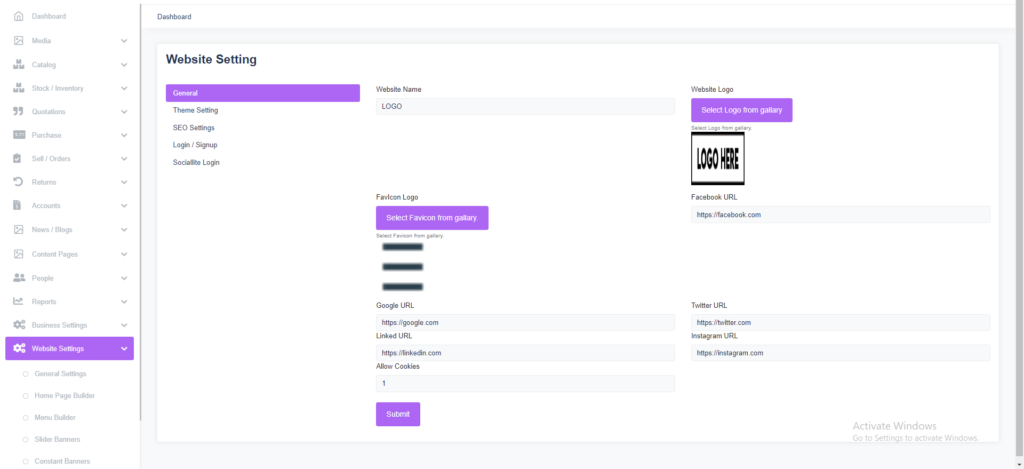
You can add your website Name or add a logo. To Modify go to the following Link :
Open https://your-site.com/admin/website-setting
Go To Website Settings > General SettingsHow to Select the Logo of your website ?
You can select a logo from your Gallery, If you have not uploaded the logo in the Gallery then you need to go to media settings and upload the logo there and set a tag for the picture that you have uploaded. Once you have uploaded the Logo you can use it for Website Logo by searching the tag that you set while uploading the Logo.
How to select the Favicon for your website ?
You can select a Favicon from your Gallery, If you have not uploaded the logo in the Gallery then you need to go to media settings and upload the Favicon there and set a tag for the picture that you have uploaded. Once you have uploaded the Favicon you can use it for Website Favicon by searching the tag that you set while uploading the Favicon.
You can add Social media URLs on this Page.
- Facebook URL :
- Google URL :
- Linked-In URL :
- Twitter URL:
You can also Allow Cookies to 0 and 1 to
SEO settings#
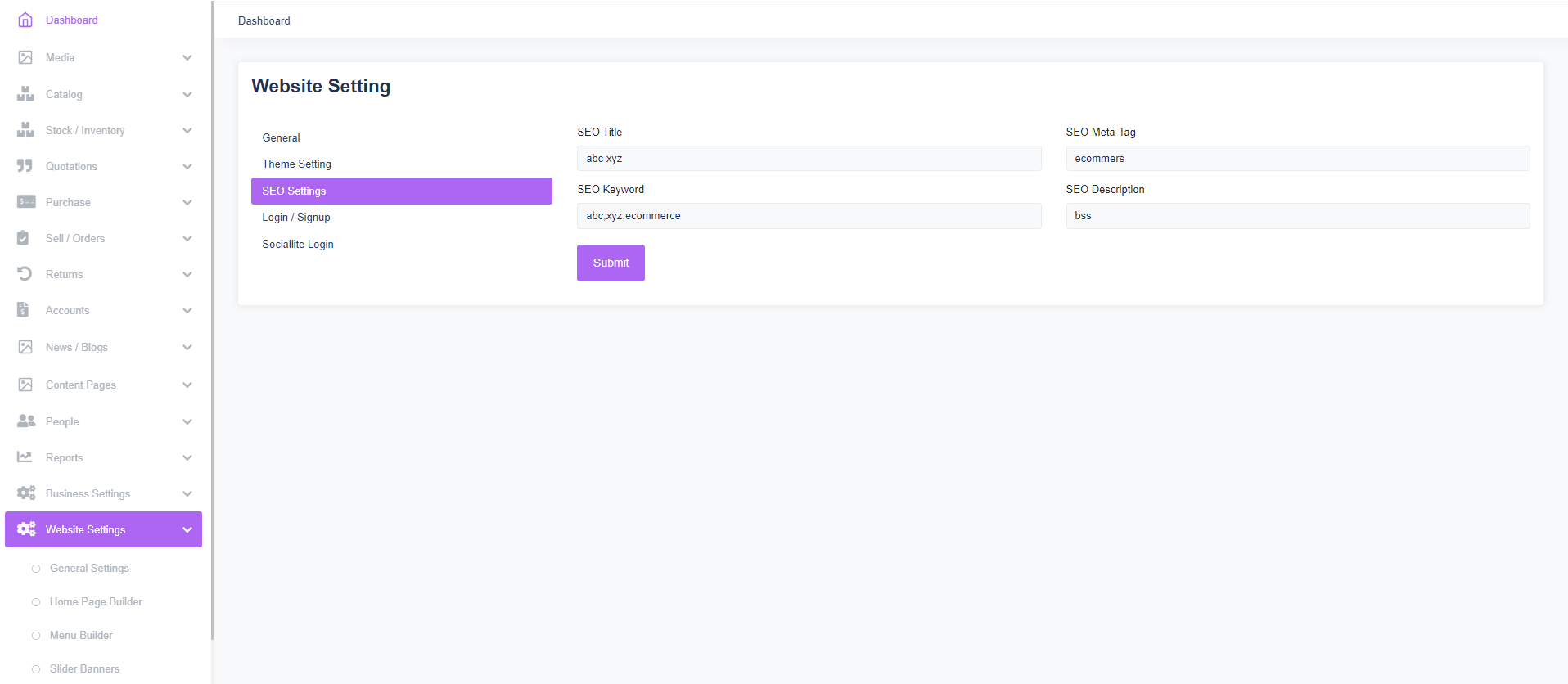
From this settings you can change the content for SEO Title, SEO meta Tag, SEO keywords and SEO Description for your brand. This content is meant for your different SEO campaigns. You can add SEO Title, SEO Meta-Tags, Keywords and Description.
Open https://your-site.com/admin/website-setting
Website settings -> SEO Settings
Also We have introduced this feature in our website where you can add/disable fields and features in your Login/Signup Form. You can enable/disable login from Facebook and google. You can also add guest checkout as well to make it easier for customers. You can add Email and phone number field as a addition Website settings -> Login/signup You can change the settings from the following URL:
Open https://your-site.com/admin/website-setting
Theme Settings#
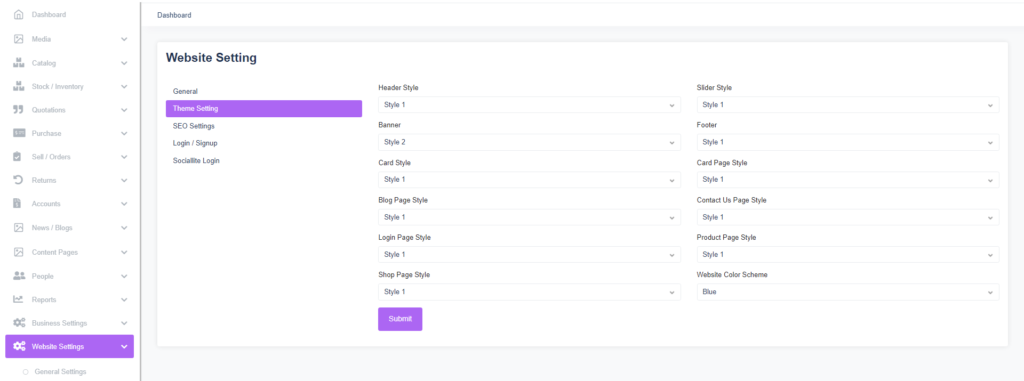
In Theme settings you can change the multiple styles for the sections mentioned below, we have offered multiple pre-built styles for you. You can choose the desired style for the mentioned sections.
You can visit these settings by clicking on Website settings -> Theme Settings .
Open https://your-site.com/admin/website-setting
Header Style :
We have made 8 Pre Built styles for the header in which you select one design as per your requirements.
Slider Style:
We have offered 5 pre-built designs from which you can choose a single style for your website slider.
Banner Style :
We have offered 19 pre-built banner styles. You can select one banner style that suits your website.
Footer Style:
We have offered 10 Pre built footer styles, You can also add new styles for that you will have to make changes in the source code.
CartStyle :
We have offered 20 pre-built styles for Cart, you can select any of the the mentioned in the drop down. You can add more if you want but this change will have to be added in the source code.
CartPage Style:
You can select cart page style for instance, we have developed 2 layouts but we are planning to add more.
About Us Page Style:
From this option you can select the layout for the about us page. We have introduced 3 pre-built designs but you can add more as per your requirements for that you will have to change from the source code.
Open https://your-site.com/admin/website-setting
Blog page Style:
You can select the layout from this option. We have offered 2 designs for the blog page. You can add more if you want but this will have to be added in the source code.
Contact Us page Style:
You can select the Contact us layout from this option. You can add more if you want but this will have to be added in the source code.
Login Page Style:
You can Select login page layout from this dropdown setting. You can add more if you want but this will have to be added in the source code.
Product Page Style:
You can select product page style from the 5 styles mentioned below. You can add more if you want but this will have to be added in the source code.
Shop Page Style:
Select the desired shop page style from the pre built layouts. You can add more if you want but this will have to be added in the source code.
Open https://your-site.com/admin/website-setting