Manage the store
Banner Management
This chapter covers Constant Banner and Banner Settings.
Constant Banner#
Constant Banner-> Manage Constant Banner
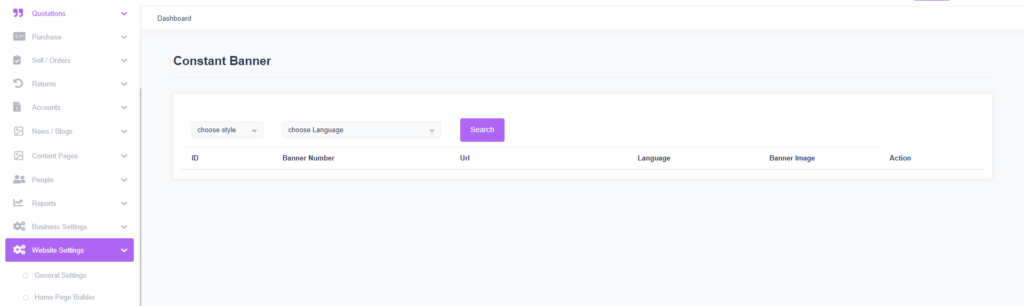
Manage constant banner allows you to choose different banner style and different language that you added and upload the images and links related to your website and manage your banners.
- Click on the “Choose Style” button to select the style from the list.
- Click on the “Choose Language” button to select the language from the list.
- Click on the search button.
- Click on the “Edit” button to add the images for the banner.
- Upload the banner.
- Click on the submit button to submit the banner.
Open https://your-site.com/admin/constant-banner
Banner Settings#
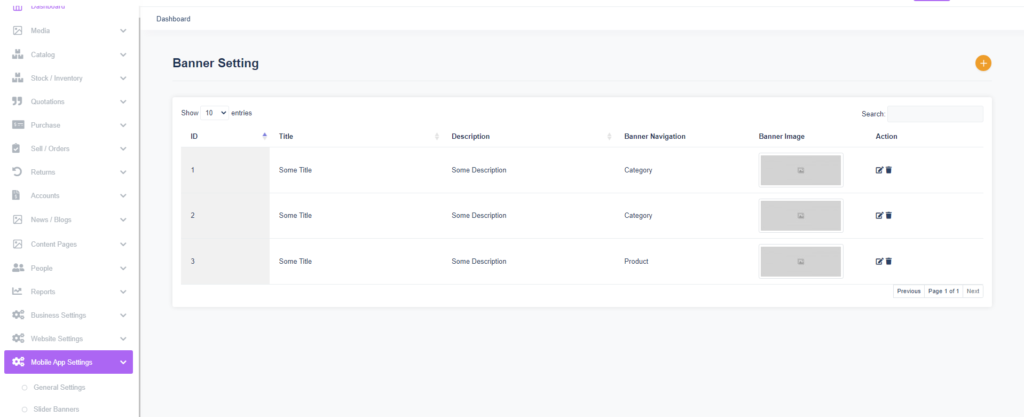
From this URL you can change the slider images. This is the process that you need to follow :
Open https://your-site.com/admin/banner-setting
- Upload the images in the Media folder by giving the tag as Banner Images.
- Click the Plus sign in front of the Banner Settings.
- You need to add the name of the Banner
- Add the description of the Banner.
- Select the language for which you want to show the banner. For example English or Arabic.
- Select the Banner type
- Select the Banner Navigation .
- You can Select the option for banner whether it should be active or not.
- Once you have completed the information then you need to click the submit button to successfully add the Banner.
- You can also edit/Delete the banner once you have added the slider.