Products Management
This chapter covers Products Variation, Product Categories, Products Attributes, Units, Product Brand, Product Stock, Product and Product Review.
Products Variation#
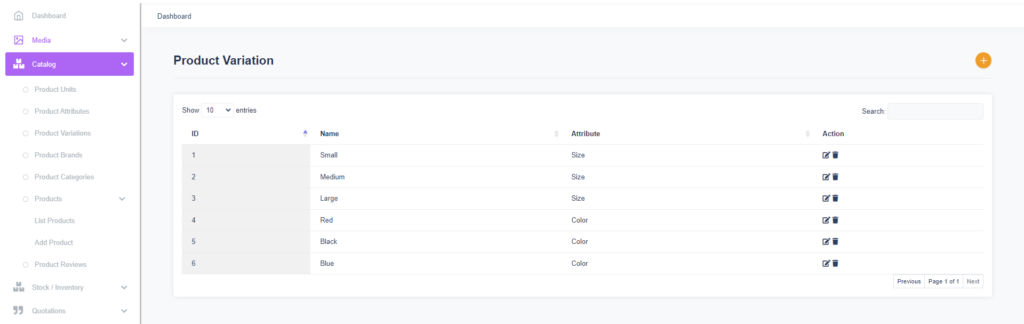
Variations are the varieties of product attributes. For example variation of size attribute is Small, Medium, Large, XL. You can add and assign as many variations to your attributes as you like according to the nature of your business.
Go to Catalog -> Product Variations
Open https://your-site.com/admin/product-variation
Name the variations as you want it to be displayed i.e Small, Medium, Large , White, Black, Blue etc.
- Click the “Plus Icon” to add the product variation.
- Enter the variation name.
- Assign the variation to the desired attribute.
- Assign the status of brand (active/inactive).
- Click on the submit button to add the brand.
Product Categories#
Categories#
The categories section allows you to create categories for your eCommerce store. For instance, if you run a clothing store, you may need to add categories like Men’s Clothing, Women, Kids etc
Go to Catalog -> Product Categories
Categories Listing page Link
Open https://your-site.com/admin/product-category
- By clicking on “Plus Icon”, you can add your defined category.
- Assign here the name that you want for the subcategory i.e, jeans, shoes, scarf etc.
- Add the category description in this section
- In parent category you can assign a main category and add a subcategory to it.
- Slug:
- In category media you can add images related to category.
- In the category icon you can add icons related to the category..
- Click on submit and you will be done with a new category addition.

Products Attributes#
Attributes are meant to define different aspects of your products, for example, color, size, Waist, Weight etc. You can add and assign as many attributes as you like according to the nature of your business.
Go to Catalog -> Product Attributes
Open https://your-site.com/admin/product-attribute
Name the attribute as you want it to be displayed i.e Size, Color, Waist etc.
- Enter the “Plus Icon” to add the product attribute.
- Enter the Attribute name.
- Click the submit button to add the product attribute.

Units#
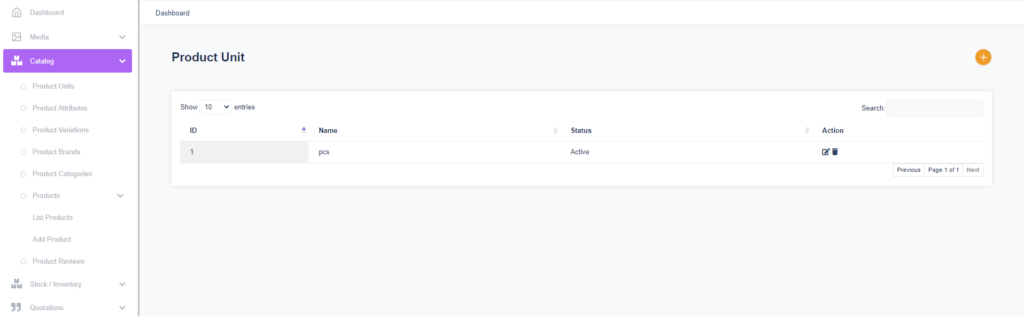
Here you need to add the units in which you deal. For instance, if you deal in products that ought to be weighed, you have to add weight units i.e grams, kilograms etc.
Go to Catalog -> Product Units
Use the link below to Add Units.
Open https://your-site.com/admin/product-unit
- Click on the “Plus Icon” to add a product unit.
- Enter the name of the unit.
- Assign the status of the unit (active/inactive).
- Click the submit button to add the product unit.
Product Brand#
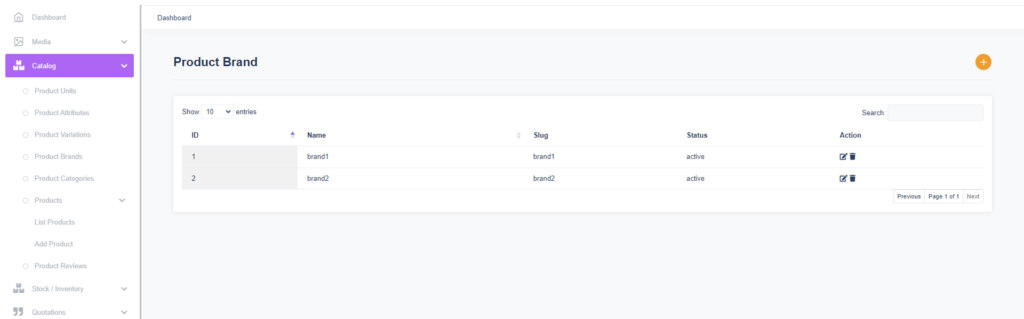
In this section you can add brands according to your products that you use in your business. You can assign the products to the brands that you add.
Go to Catalog -> Product Brands
Open https://your-site.com/admin/product-brand
Name of the brands can be i.e Nike, Adidas, Polo etc.
- Click the “Plus Icon” to add the brand.
- Enter the brand name.
- Enter the slug that you want.
- Upload the images of the brand.
- Click on the submit button to add the brand.
Product Stock#
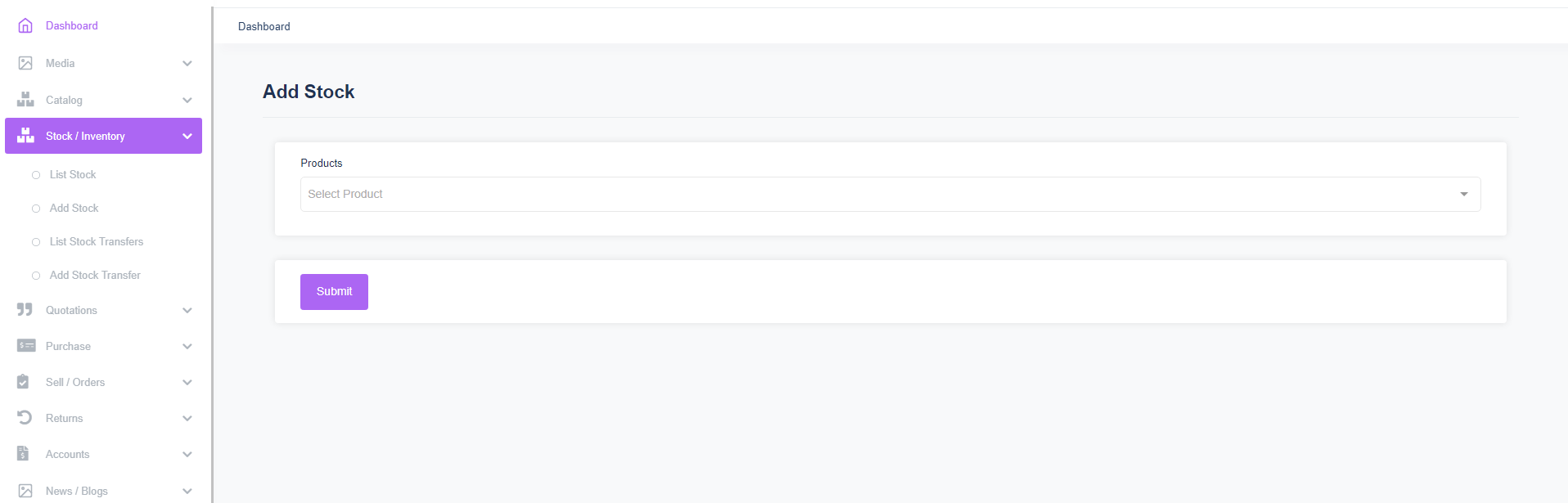
Product Stock->Add Stock
This section allows you to maintain a record of the available product wise. To keep you abreast this feature is crucial and must be tackled with utmost care.
To add stock of your products use the link below.
Open https://your-site.com/admin/add-stock
- Select the product from the list in which you want to add stock.
- Click on the add button to get the list of your product.
- Enter the stock details in the fields.
- Click on the submit button.
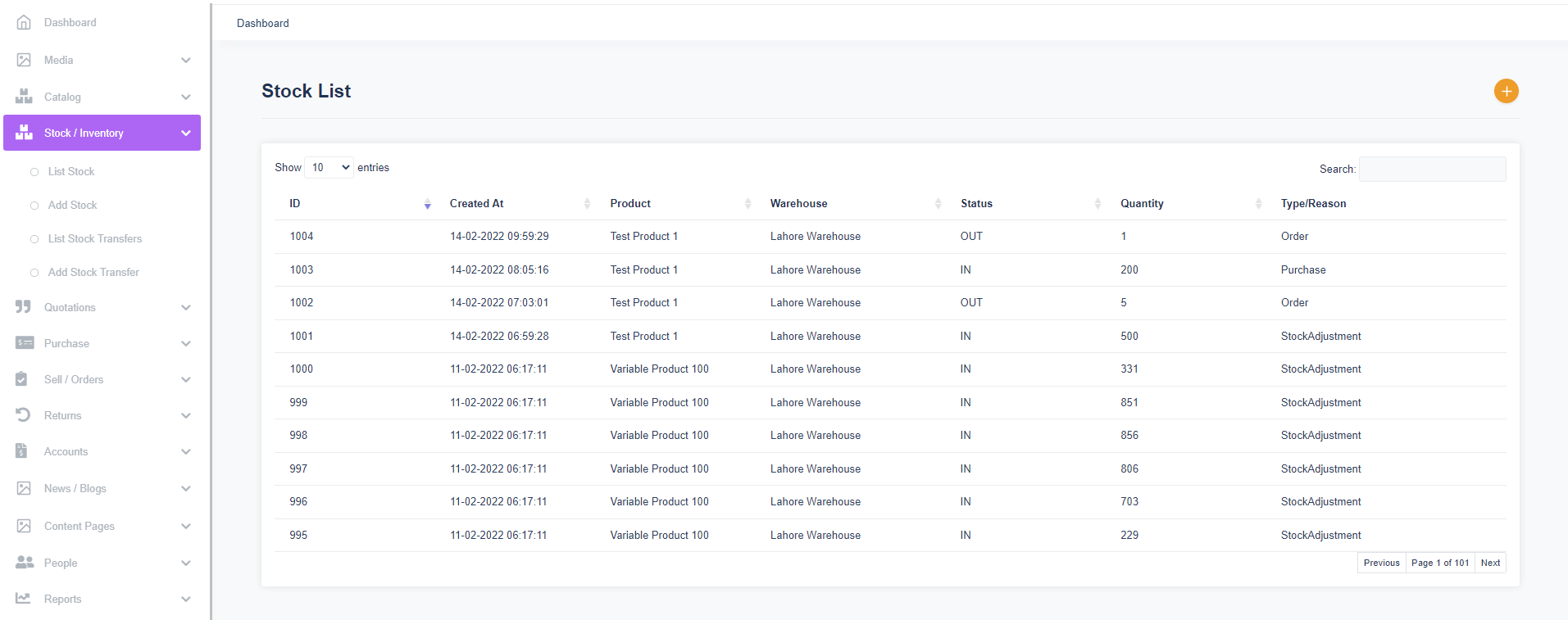
Product Stock->List Stock
This section allows you to check the lists of all stocks that you have added.
To check stocks of your products use the link below.
Open https://your-site.com/admin/stock
Product Stock->Stock Transfer
In the stock transfer section you can transfer the stocks of your products from one warehouse to the other. You can keep track of your stocks using this section.
To transfer the stocks of your products use the link below.
Open https://your-site.com/admin/stock-transfer
- Select the warehouse from where you want to transfer the stock.
- Select the warehouse in which you want to transfer the stock.
- Add the reference no.
- Add the stock transfer date.
- Select the product from the list of which the stock is being transferred.
- You can also add the note in the note section.
- Click on the submit button.

Product#
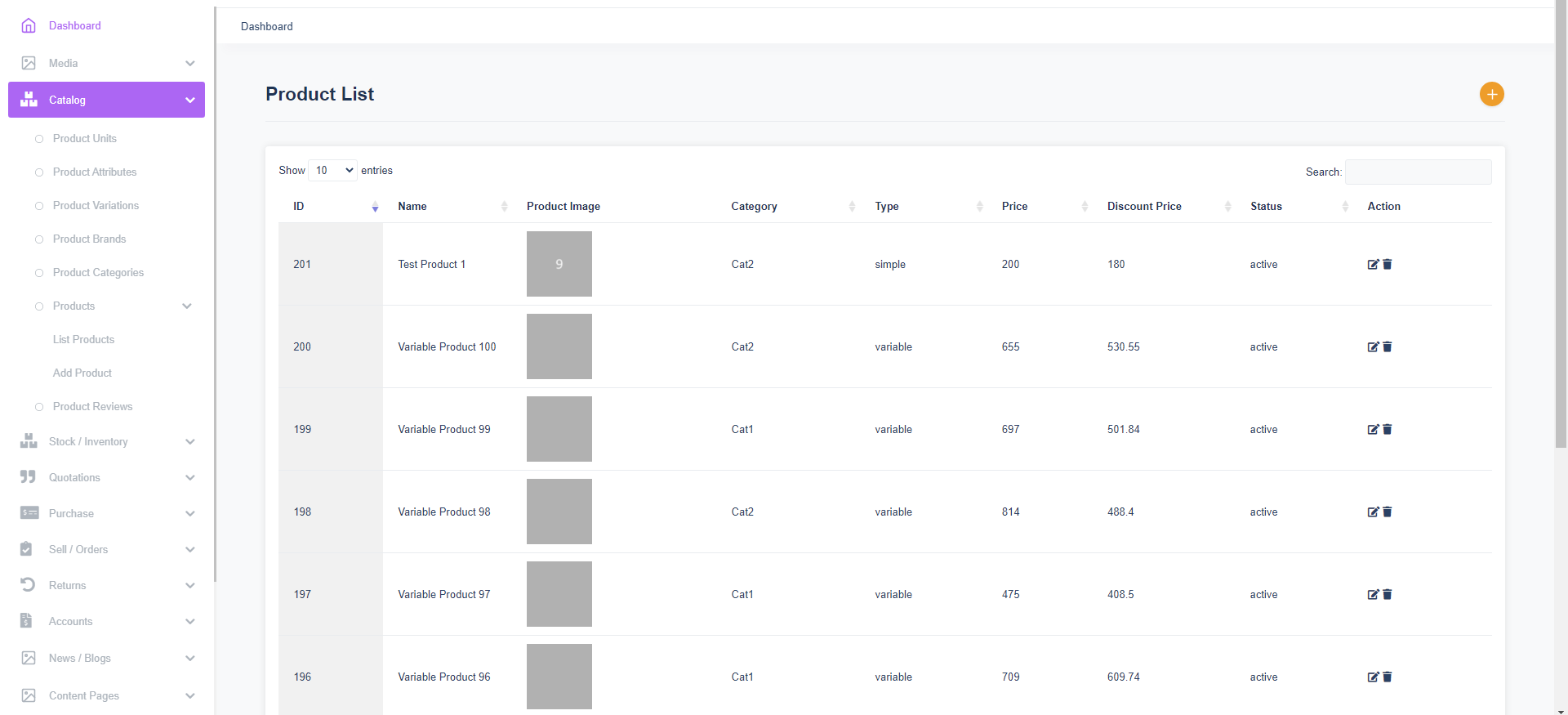
Product->List
In the list you can check and manage all your products that you have added. In this list you can edit the details and you can also delete the product if you want.
Open https://your-site.com/admin/products
Product->Add Product
This section allows you to add a new product. First of all you add the images related to your product and then you can assign that product under a category and you can select the category from the list. Then you add the product name and it’s description.
In advance details you add product type if it is a simple product or a variable product.
Also, you add more details of your product i.e. Unit, Price, Brand, weight etc.
Open https://your-site.com/admin/add-product
- Click on the media to upload the images related to the product image.
- Assign the category to the product that you’re adding.
- Enter the name of the product and description.
- You can also add a video url of your product.
- Add the product type (simple or variable).
- You can add further details of your product according to your product (Unit,Price,Weight) etc.
- Click on the save button to add the product.

Product Review#
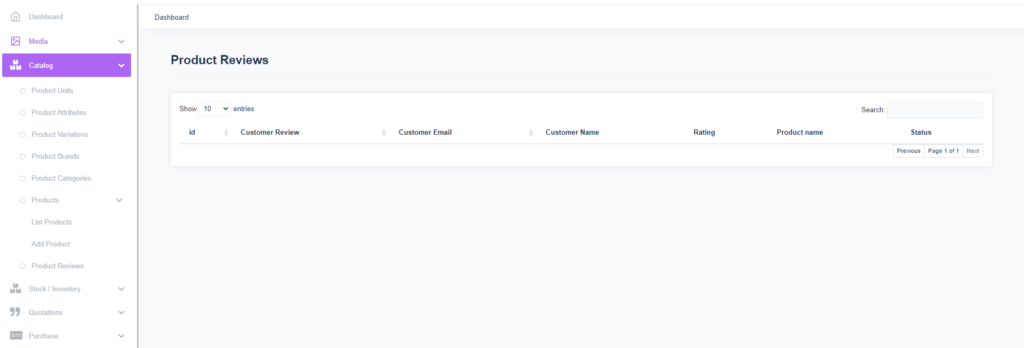
This section allows you to check and manage the list of reviews on your products.
Product-> Product Review
Open https://your-site.com/admin/product-reviews