Purchase Managements
This chapter covers Add Purchase, Purchase List and Return.
Add Purchase#
Purchase->Add purchase
In this section you can add purchases of the products that you have entered according to your business.You can add quotation by selecting it from list and and then you can add the quantity and price and the stock will automatically updated.
- Click on the quotation to select the quotation from the list.
- Select the warehouse from the list.
- Select the purchaser from the list.
- Add the purchase date.
- Select the product from the product list.
- Click on the submit button to add the purchase.
Open https://your-site.com/admin/add-purchase

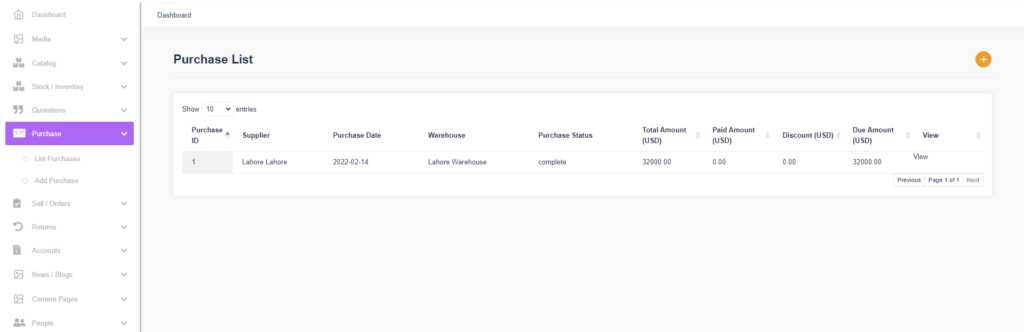
Purchase List#
Purchase->List
This section allows you to check and manage the list of purchases that you have added.
Click the link below to check the list section.
Open https://your-site.com/admin/purchases
Return#
Return->Sale Return
In this section you can check the list of sale return items.
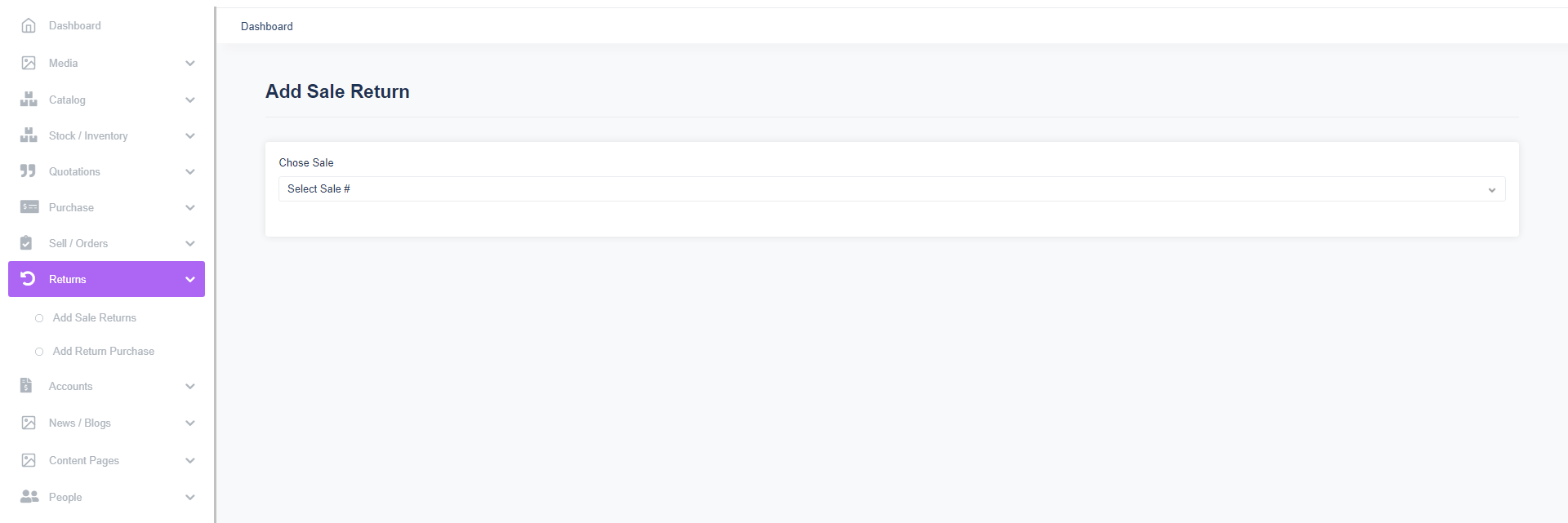
Return->Add Sale Return
In this section you can add the sale return of the related product of which the items are returned.
- Choose the sale from the list.
- Add the quantity and price at which the items are returned.
- Click on the “Submit” button to add the return.
Return->Purchase Return
In this section you can check the list of purchase return items.
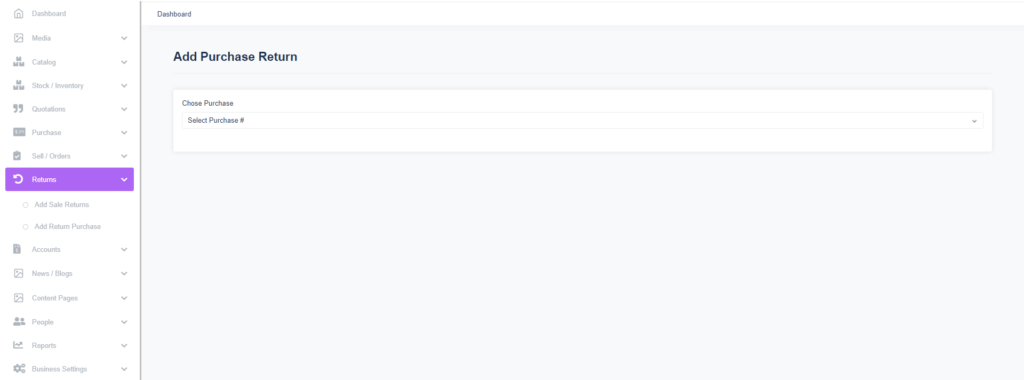
Return->Add Purchase Return
In this section you can add the purchase return of the related product of which the items are returned.
- Choose the purchase from the list.
- Add the quantity and price at which the items are returned.
- Click on the “Submit” button to add the return.
Click the link below to check the purchase return section.
Open https://your-site.com/admin/add-purchase-return