
Application Settings
This chapter covers Orders, AdMob Settings, Order Status, Manage Label, Application API, Banners, Application Settings and Content Pages.
Orders#
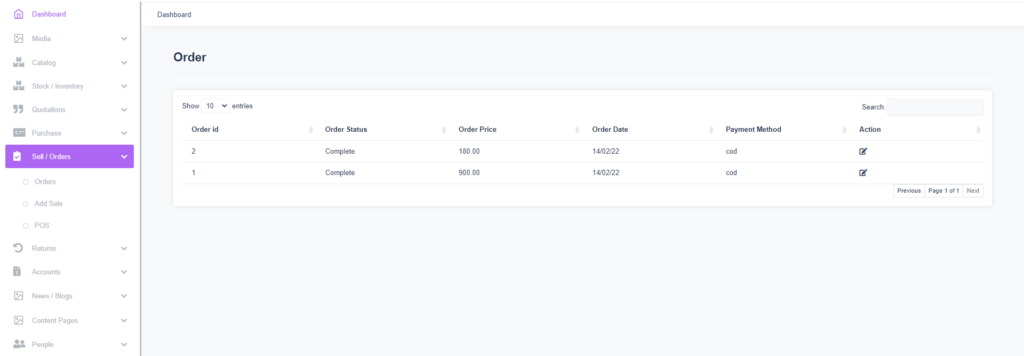
This section informs you about all the orders that have been placed till date and also about their status whether they have been delivered, pending or cancelled whatsoever the case may be.
Use below link for list of Orders.
Open https://your-site.com/admin/orders
Go To Sell / Orders > Orders
AdMob Settings#
You can add your Offer text with desired Link. To modify use below link.
https://your-site.com/admin/app-setting
Order Status#
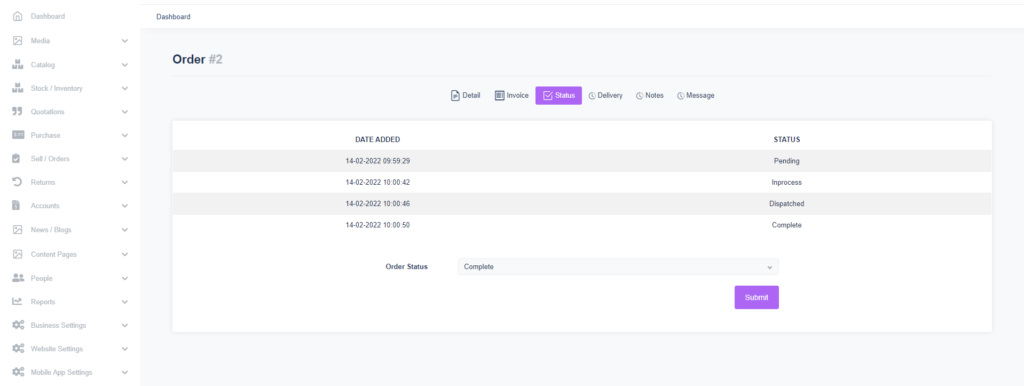
This allows you to assign different statuses to the orders that are placed i.e Pending, Completed, Cancel and return etc.
Use below link to add Order statuses.
Open https://your-site.com/admin/orders
Go To Sell / Orders > Orders
Manage Label#
Choose Header: Select here your desired header styles.
Carousel: Choose from here the desired carousel style that you want to implement.
Banner section. Select from an array of already added banner styles, or you can also add further.
Tab product view. This is to enable or disable the tab product view option.
Flash sale section. This is a dedicated section for products that are added in your flash sale.
Categories. This section allows you to activate or deactivate your predefined categories section.
First Parallax banner section. There would appear an ad section on the website. The first Parallax banner section is optional. If you do not want this to be displayed, simply disable it.
Top selling. This is meant for your top selling products. Enable or disable this section according to your desire.
Second Parallax banner section. There would appear an ad section on the website. The second Parallax banner section is optional. If you do not want this to be displayed, simply disable it.
Newest product section. This displays your newest product additions. Disable it if you do not have any new products at the moment to be displayed in this section.
Third Parallax banner section. There would appear an ad section on the website. The Third Parallax banner section is optional. If you do not want this to be displayed, simply disable it.
Blog section. This section is dedicated for your recurring blogs.
Info boxes. This section is dedicated for info, select it according to your requirements.
Choose footer. The last one is for footer. Select the desired footer from all available options.
Use below link to customize your homepage.
https://your-site.com/public/admin/webPagesSettings/1
https://your-site.com/admin/app-setting
Application API#
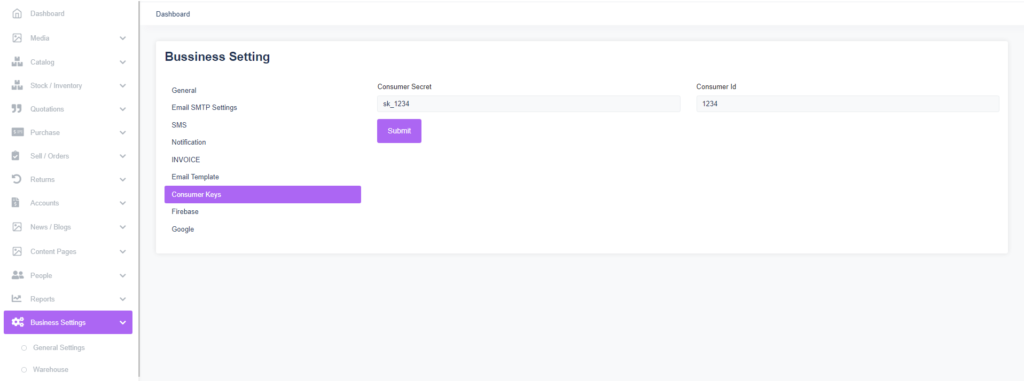
There are two available options for how you want your login to be displayed on website. Choose the style that you like.
Use below link to select your desired Login Page.
Open https://your-site.com/admin/bussiness-setting
Go To Bussiness Settings > Consumer Keys
Banners#
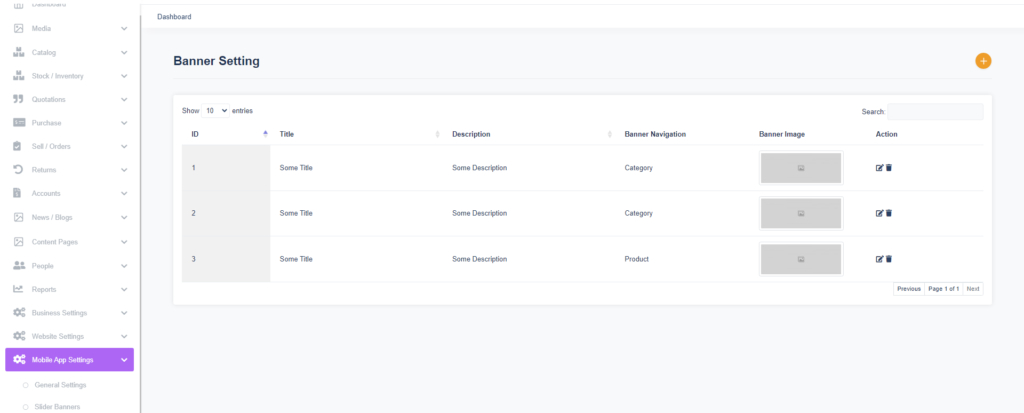
There are different available options for how you want your news to be displayed on website. Choose the style that you like.
Use below link to select your News Page.
Open https://your-site.com/admin/banner-setting
Go To Mobile App Settings > Sliders Banners
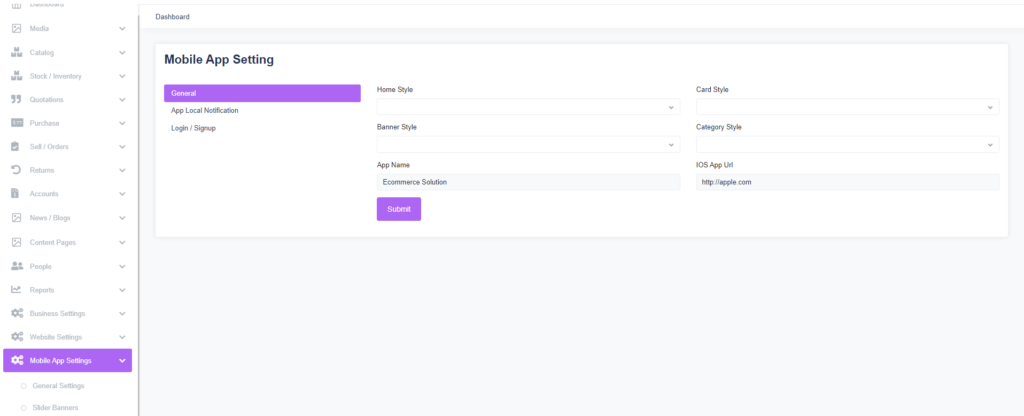
Application Settings#
From this URL you can add credentials for Application Settings :
Open https://your-site.com/admin/app-setting
Go To Mobile App Settings > General
Content Pages#
This section contains more than 5 transition or hover effects for website. You can select one of your desired transition from them.
Use below link to select your desired transition effect.
Open https://your-site.com/admin/content-page
Go To Content Pages > Manage Content Pages
