
Build your store
Wishlist, compare and quick view
Wishlist and compare#
Shoppers save products to a wishlist, or add them to compare side by side. Both work without an app or a customer account: the choices are saved in the shopper's browser.
Set them up once:
- In Online Store → Pages, create a page called Wishlist with the handle
wishlist, and choose the wishlist template. - Create a page called Compare with the handle
compare, and choose the compare template. - In Theme settings → Wishlist & compare, choose what the icons open: the wishlist opens a slide-out drawer or the wishlist page, and compare opens a compare bar or the compare page.
- Turn the icons on in Header layouts → Wishlist Icon And Page and Comparison Icon And Page.
Because the lists live in the browser, they don't follow a shopper to another device. For a wishlist saved to the customer account, use the wishlist in Templeto Kit.
Quick view#
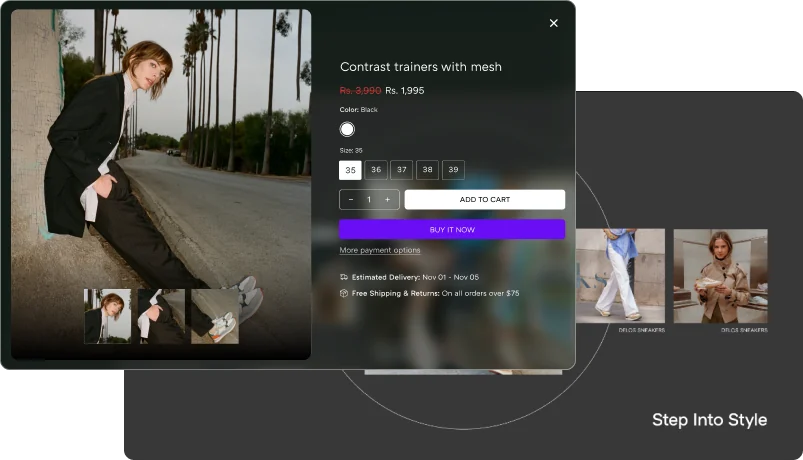
Quick view opens a product in a window from its card, with images, options and the add-to-cart button. Turn the button on in Theme settings → Product tiles → Hover actions, and set what the window shows in Theme settings → Quick view.