
Increase order value
Spend & save
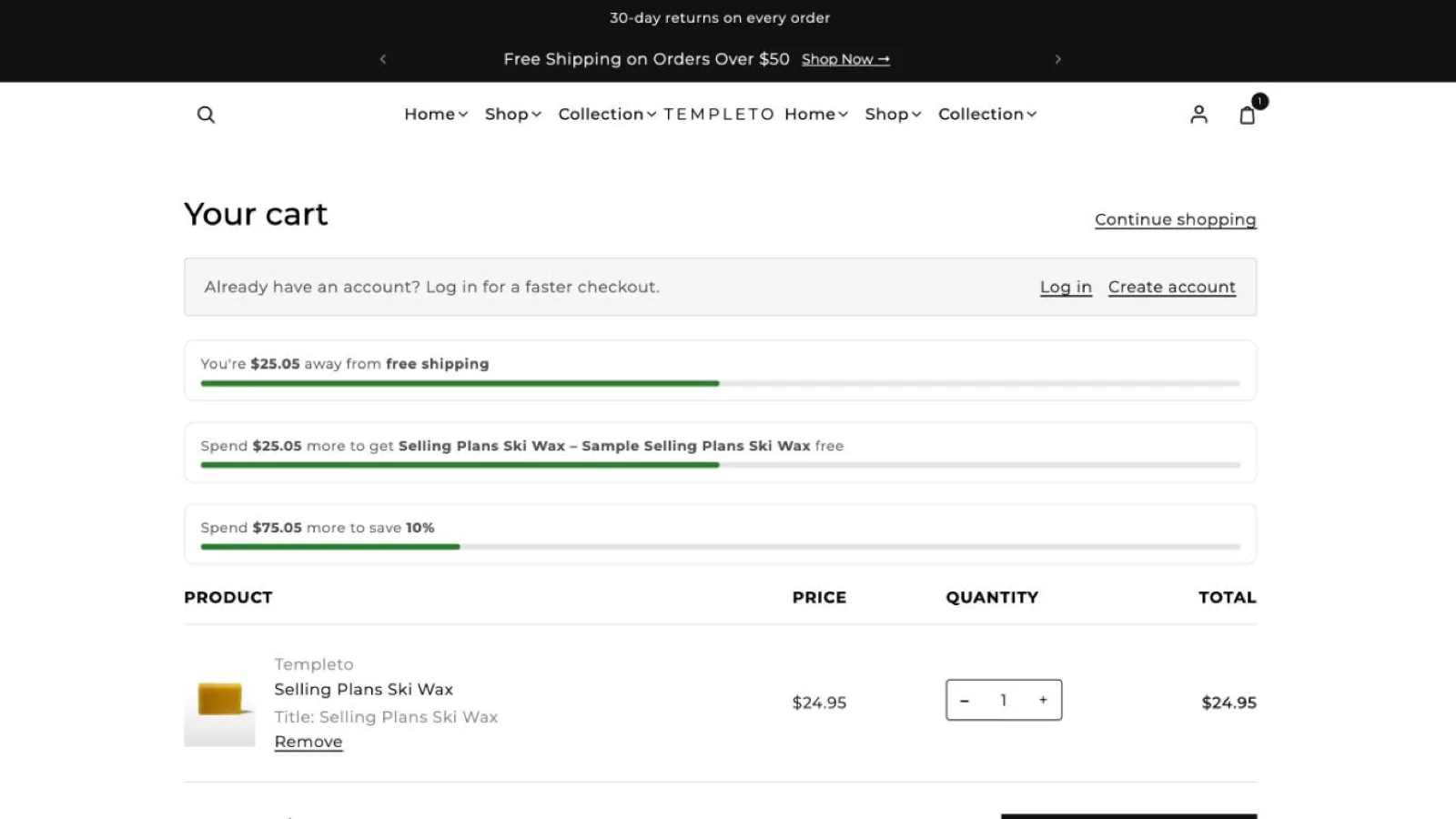
Spend $100 save $10, spend $200 save $25. A progress message in the cart shows shoppers how close they are to the next saving, and the discount applies to the whole order in checkout.
| Plan | Starter, Growth or Pro |
| Shoppers see it | Cart drawer and cart page |
| In the app | Templeto Kit → Bundles & discounts → Create offer → Spend & save |
| Theme setup | The Templeto Kit app embed |
Set it up#
- In your Shopify admin, open Apps → Templeto Kit → Bundles & discounts → Create offer → Spend & save.
- Add spending goals, for example spend $100 save $10.
- Save. A progress message shows in the cart, and the discount applies in checkout.
- Make sure the Templeto Kit app embed is on. Nothing else needs adding to the theme.
Settings#
| Setting | What it does |
|---|---|
| Title | Shown in your discounts list. |
| Discount type | Percentage off the order or Fixed amount off the order. |
| Spend tiers | Each tier has At (the cart total, in your store's currency) and Discount. |
| Checkout message | Shown next to the discount at checkout. |
In the cart#
The cart drawer and cart page show:
- "Spend $40.00 more to save $10.00" before the first tier.
- "You're saving $10.00. Spend $60.00 more to save $25.00" between tiers.
- "You're saving $25.00 on this order" at the top tier.
Change these texts on the Storefront texts page.
Spend & save is an order discount, so it doesn't combine with other order discounts, such as a 10%-off code from your email popup. Shopify gives the shopper whichever is better.