
Getting started
The dashboard
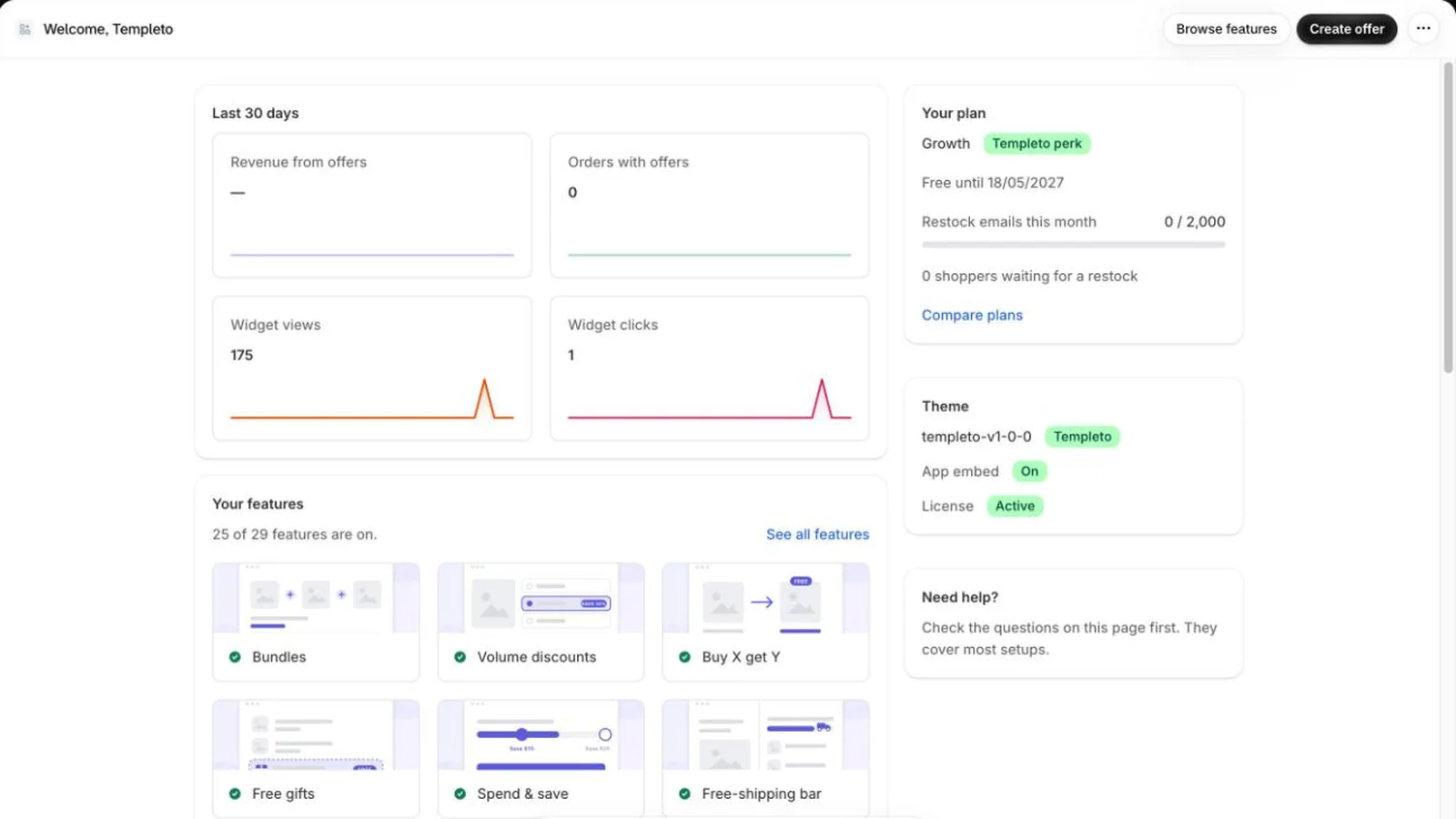
The dashboard is the first page you see in Apps → Templeto Kit. It shows what's set up, how your features are doing, and what to do next.
Setup guide#
A checklist of the first steps:
- Turn on the app embed. Opens the theme editor with the embed switched on. See Turn on the app embed.
- Activate your Templeto purchase code. Shown when your store uses the Templeto theme. See Templeto owner perks.
- Create your first offer. Starts a bundle or volume discount from a template. See How offers work.
- Turn on a store-wide feature. Opens the Features page. The free-shipping bar and the sales popup are quick wins.
Steps tick off on their own as you finish them. When everything is done you can close the guide. To bring it back, open Settings → Setup guide.
Your features and plan#
- Your features shows the features that are on, with a link to each one's settings.
- Your plan shows your plan, and how many back-in-stock emails you've sent this month out of your plan's allowance.
- Theme shows the published theme, and whether the app embed is on in it.
Widget performance#
Widget views, widget clicks, orders with offers and revenue from offers, for the last few days. For the full picture, open Analytics.
Questions and help#
The bottom of the dashboard answers the most common questions, such as why the app doesn't show on your store, or whether the numbers in social proof are real. Need help? opens support.