
Set up and run
UIUX is built with the latest Android tools. This chapter installs them, imports the project into Android Studio and runs it on your phone.
Tools#
- Android Studio. Android Studio is the official IDE for Android development, built on IntelliJ IDEA. Besides its code editor it has the tools you need to build and test Android apps.
- Gradle. Gradle is the build toolkit. The Android plugin for Gradle adds the build steps and settings specific to Android apps, and Android Studio runs it for you.
Install the tools#
Download and install the latest Java Development Kit and Android Studio. The Android Developer website has up-to-date install instructions for both.
Three things work together when you build an app in Android Studio:
- the Java or Kotlin code you write,
- Android Studio itself, the editor and tools,
- the Android SDK, the Android platform and its build tools.
Open Android Studio. It handles most of the setup for you. If it reports that something is missing, open Configure → SDK Manager: that's where you update the Android SDK and download extra platforms and tools.
Import the project#
In Android Studio, choose Import project (Gradle, Eclipse ADT, etc.).

Browse to the folder where you placed the Android UIUX project and click OK.
Wait for Gradle to finish syncing and building the project.

Run it on your phone#
Turn on Developer options and USB debugging on your Android device, and connect it to your computer. (Or start an emulator.)
Click Run 'app' in the toolbar (or press Shift+F10).
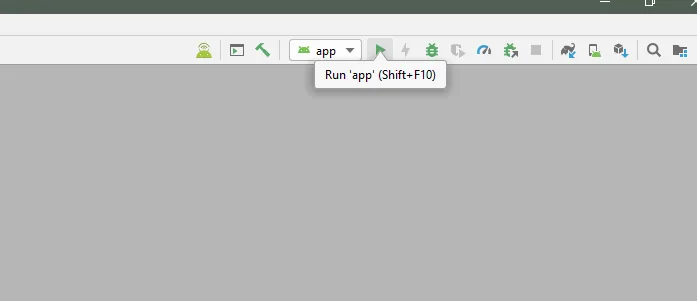
The app installs and opens on your device.