
Integrations
UIUX includes ready-made code for social logins, ads, push notifications, maps, YouTube and WordPress. Each one needs an account with that service and a key. This chapter covers getting them; Where to add your keys shows where they go in the project.
Facebook Login#
Create a new app in the Facebook developer portal.
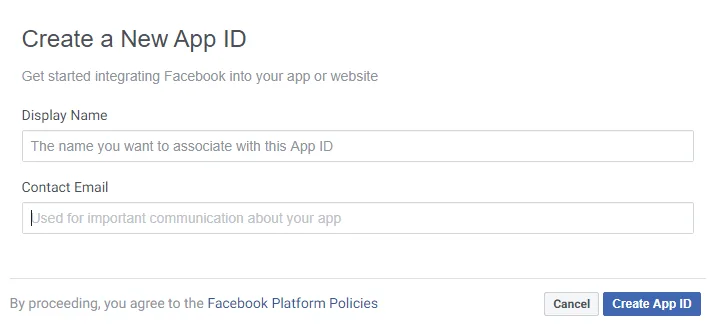
In the app's dashboard, open Settings → Basic and fill in the required fields. Add the Android platform with your app's package name.
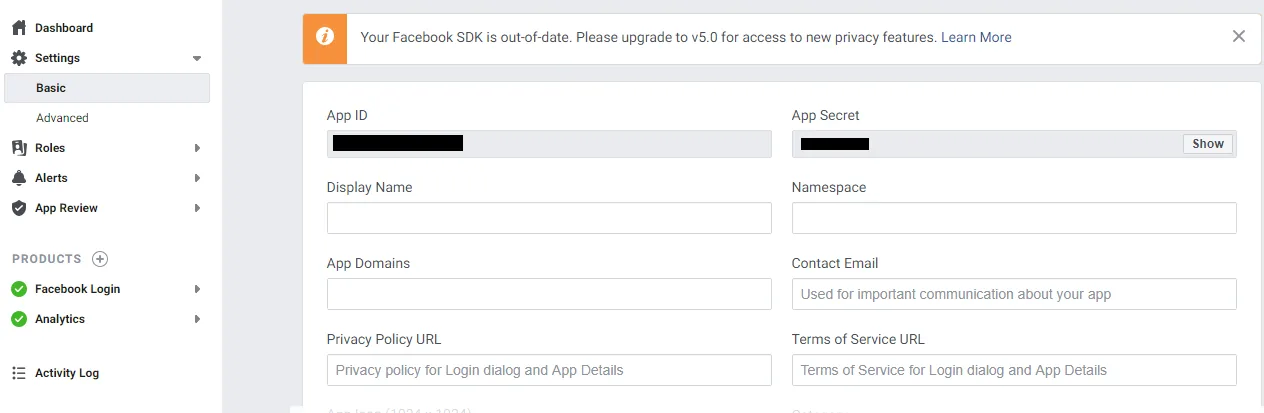
Save, and set the app live. You'll use its App ID and App Name, for example
APP_ID="123456789"andAPP_NAME="myApplication".
Google Sign-In#
Google Sign-In gives you the user's email, display name, given and family name, profile picture URL and user ID. Further Google API access is up to your app.
Create a project in the Google API Console.

Create an OAuth client for Android with your package name (as in the project's
AndroidManifest.xml) and fill in the required fields.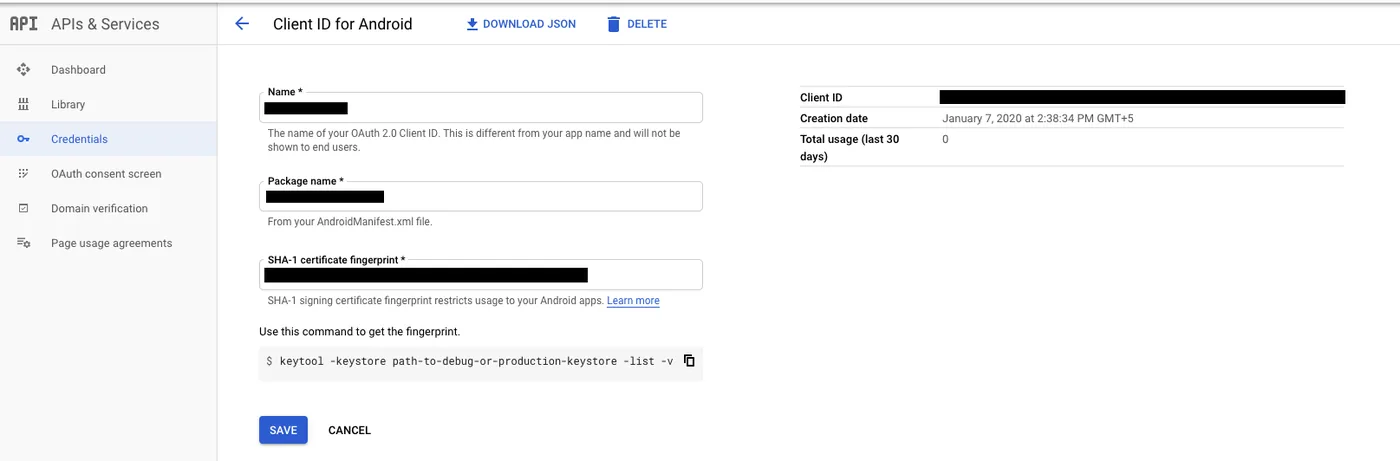
Add your SHA-1 key. In Android Studio you can get it from the Gradle signingReport task, as shown below.
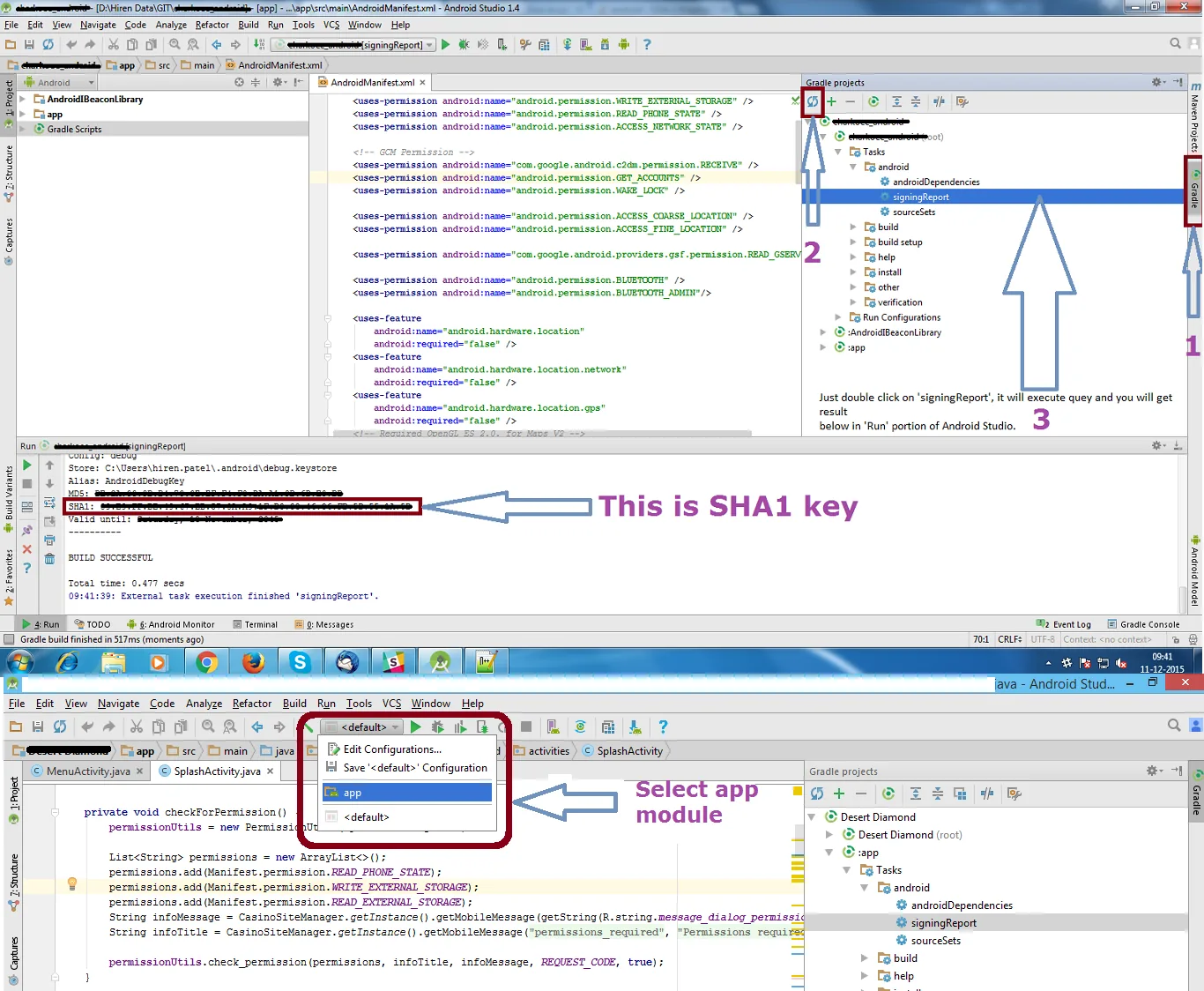
Save the changes and the integration is complete. More: Google Sign-In for Android.
LINE Login#
You need a LINE account to use the LINE Developers console. Create a provider there.
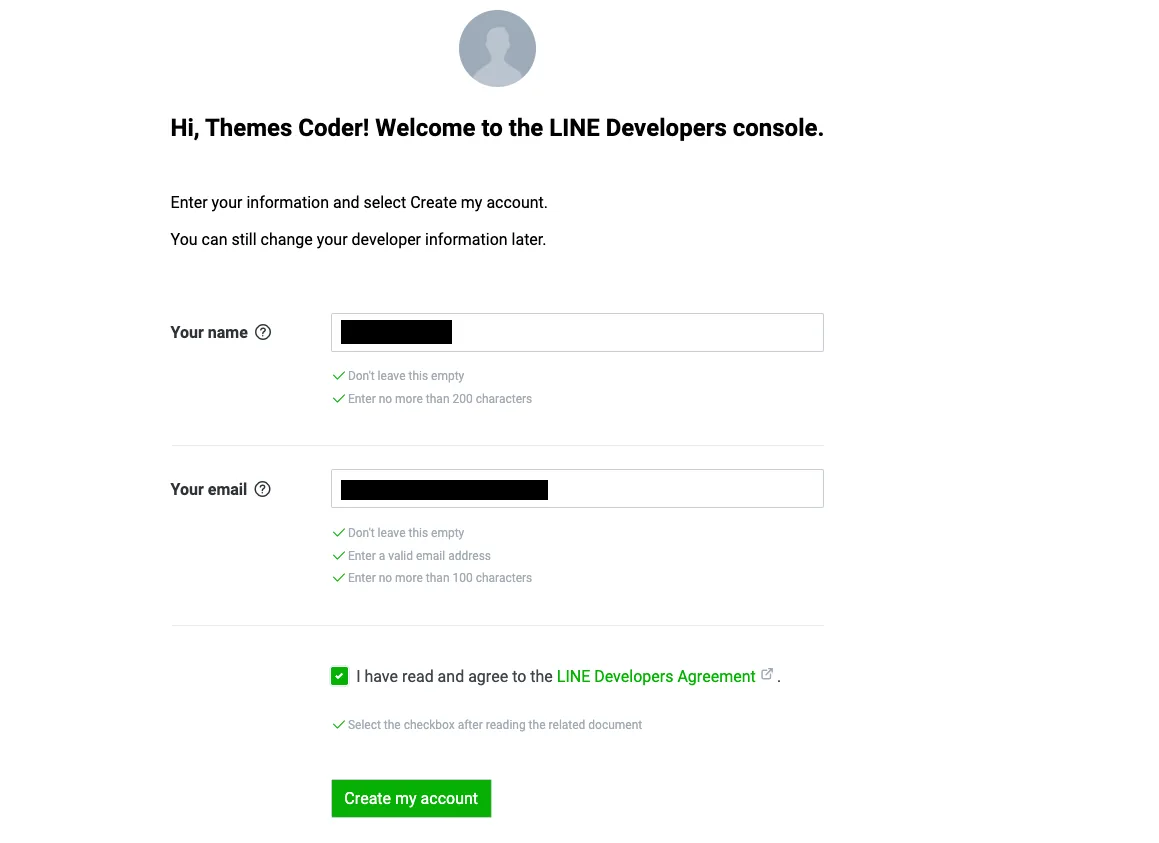
Create a channel and fill in the required fields.


Use the channel ID in the code.
Under the Android platform, add your package name and your SHA-1 key as the package signature.
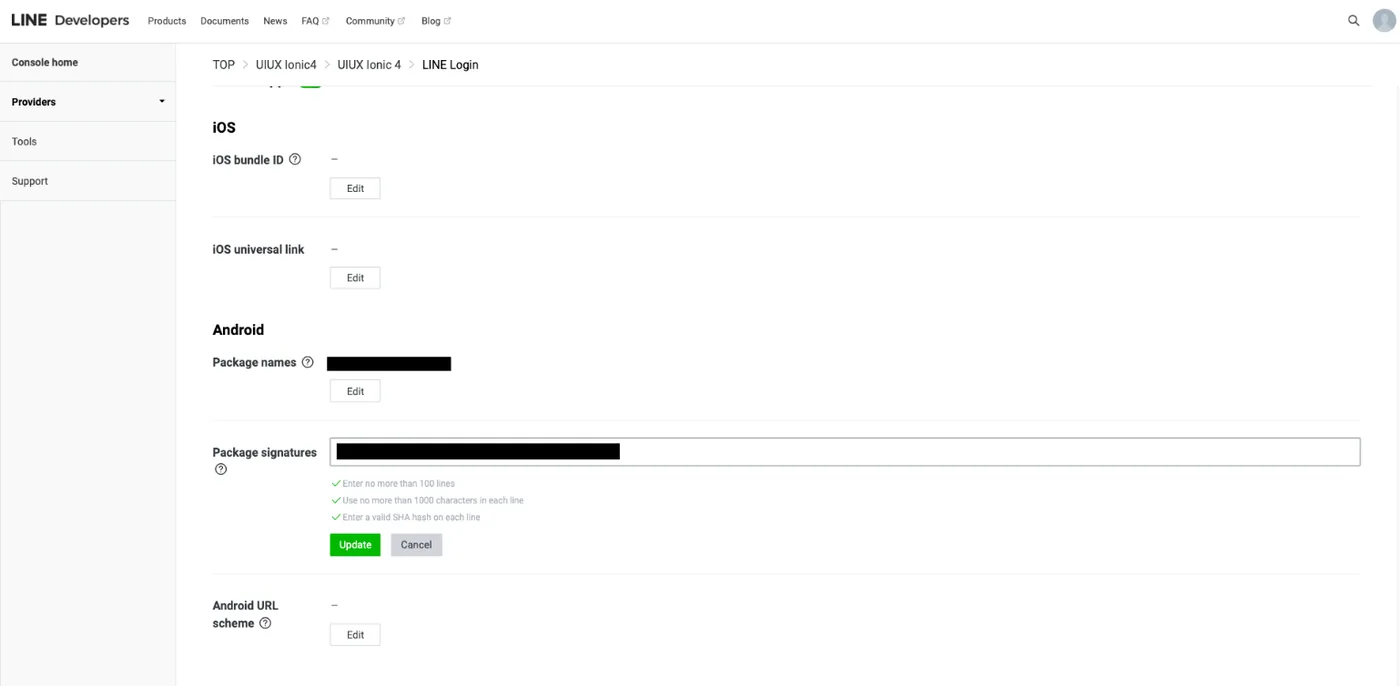
More: Integrating LINE Login with your Android app.
YouTube Data API#
Add YouTube features such as playlists and videos to your app.
You need a Google Account to use the Google API Console.
Create a project in the Google API Console and get credentials (an API key).
In the Enabled APIs page, make sure YouTube Data API v3 is on.
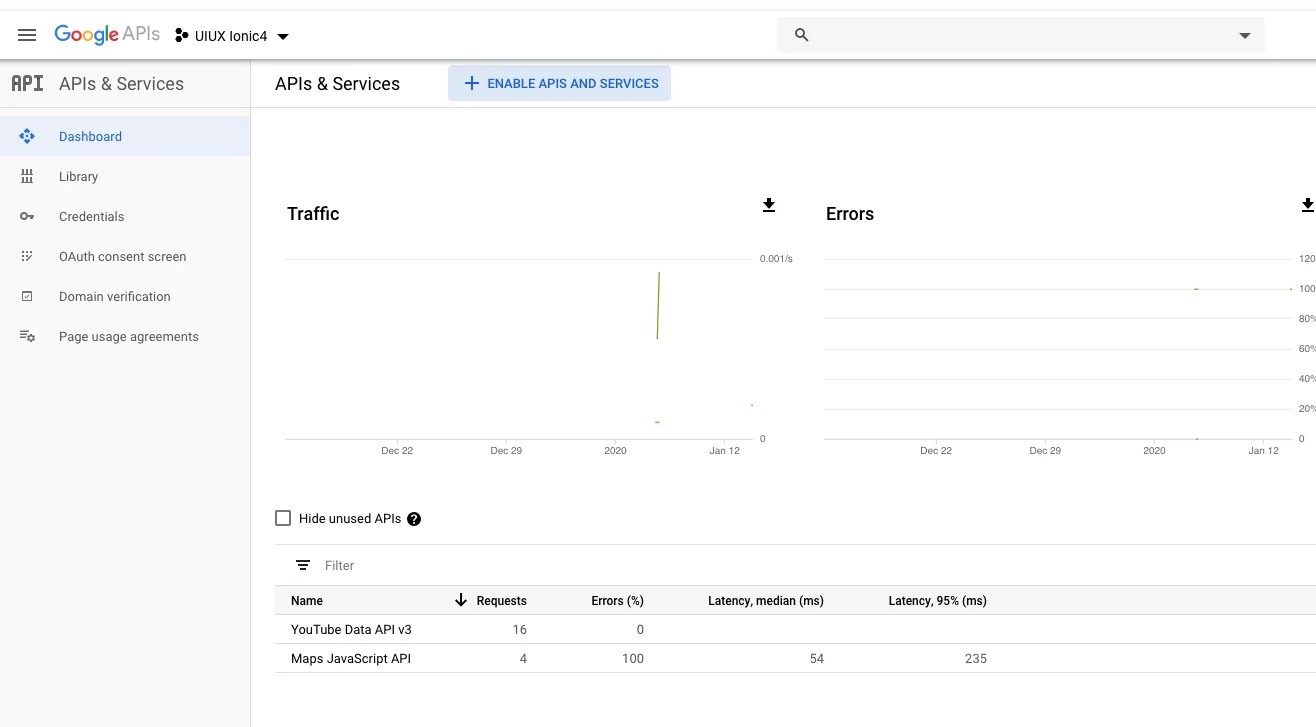
For a playlist you also need your Channel ID, from your YouTube account's advanced settings.

Use the API key and channel ID in the provided code. More: YouTube Data API getting started.
WordPress feeds#
To show posts from WordPress, put your WordPress site's URL in the provided code. See Where to add your keys.
AdMob#
Create an AdMob account and an app to get your App ID and ad unit IDs. Then you can test banner, interstitial, interstitial video and rewarded video ads. More: AdMob for Android.
Firebase Cloud Messaging (FCM)#
Add the Firebase API to your Google project (from the API Library), so the Google project syncs with Firebase. Otherwise Firebase won't let you add the Android app, because its package name and SHA key are already used by Google Sign-In.
Add an Android app to the Firebase project, download
google-services.jsonand put it in the app folder.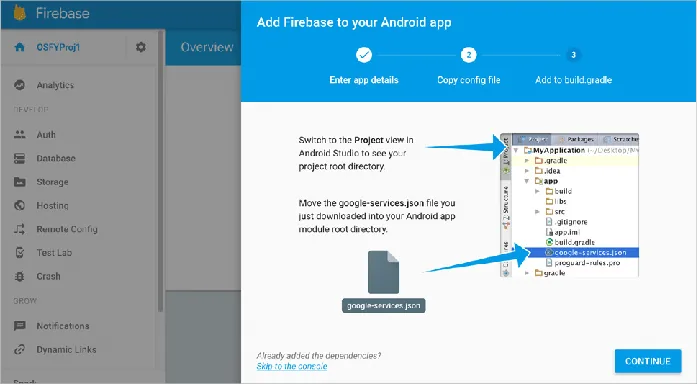
OneSignal#
- In your OneSignal dashboard, Add a new app and give it a name.
- Add the Android platform. OneSignal needs your Firebase project's server key for this.
- Under Settings → Keys & IDs you'll find the OneSignal App ID and REST API key.
Google Maps#
Enable the Maps SDK for Android in your Google project's API Library, and create an API key.
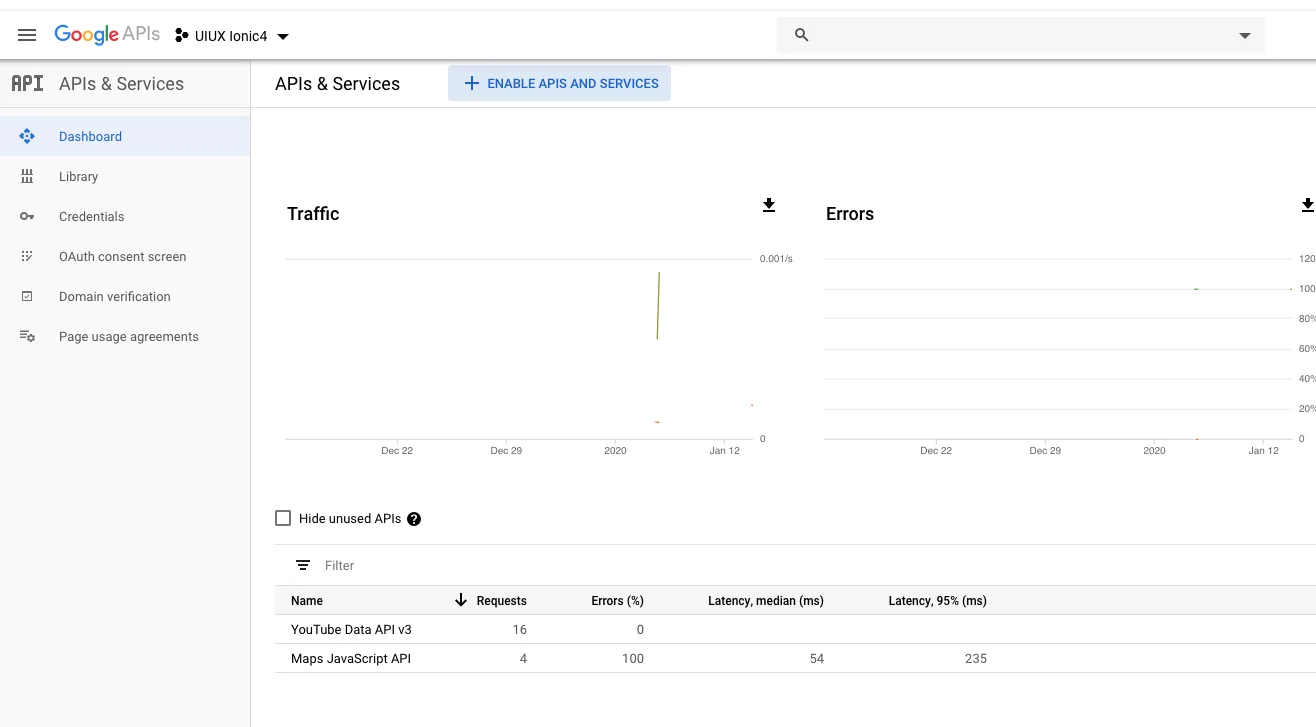
More: Maps SDK for Android.