
Angular project structure
Open the Angular project, change its colours, and find the screens and templates to copy.
Open the project#
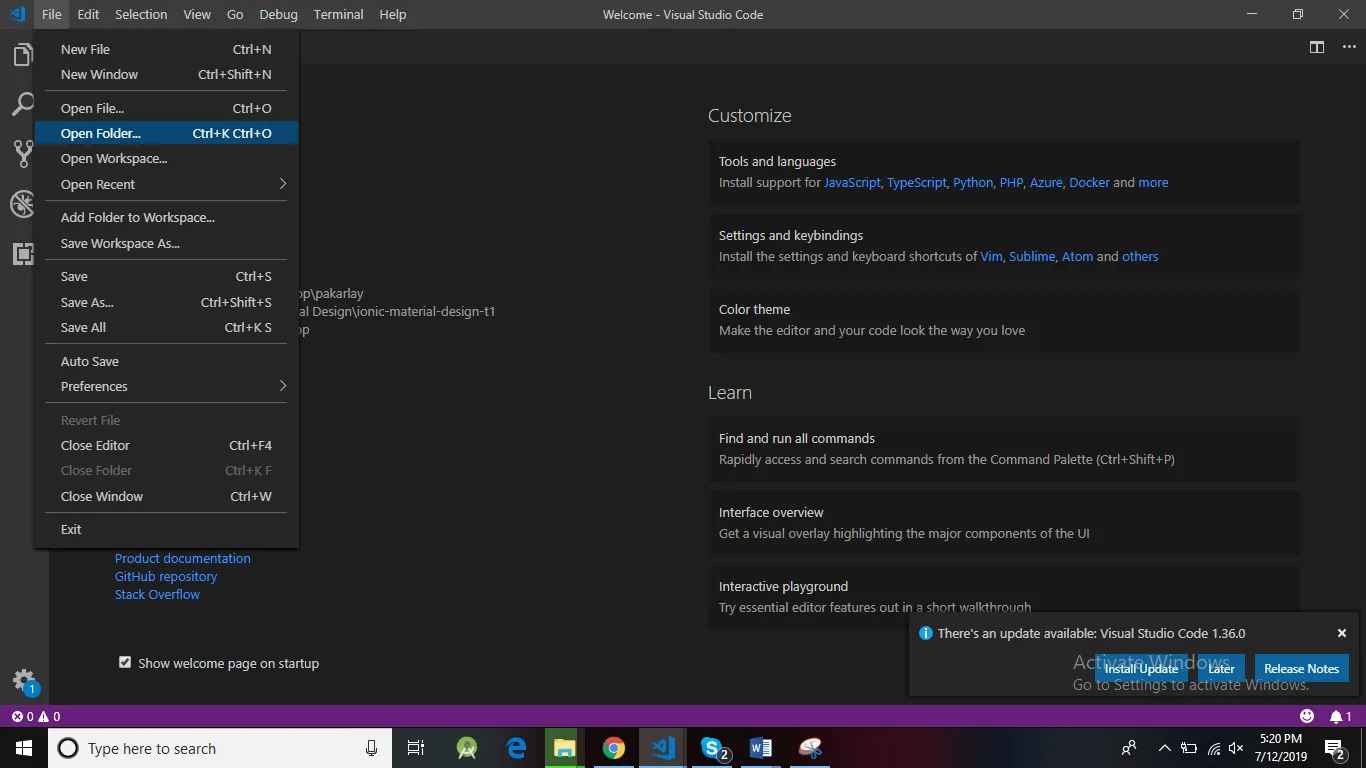
Open Visual Studio Code.

Choose File → Open Folder.
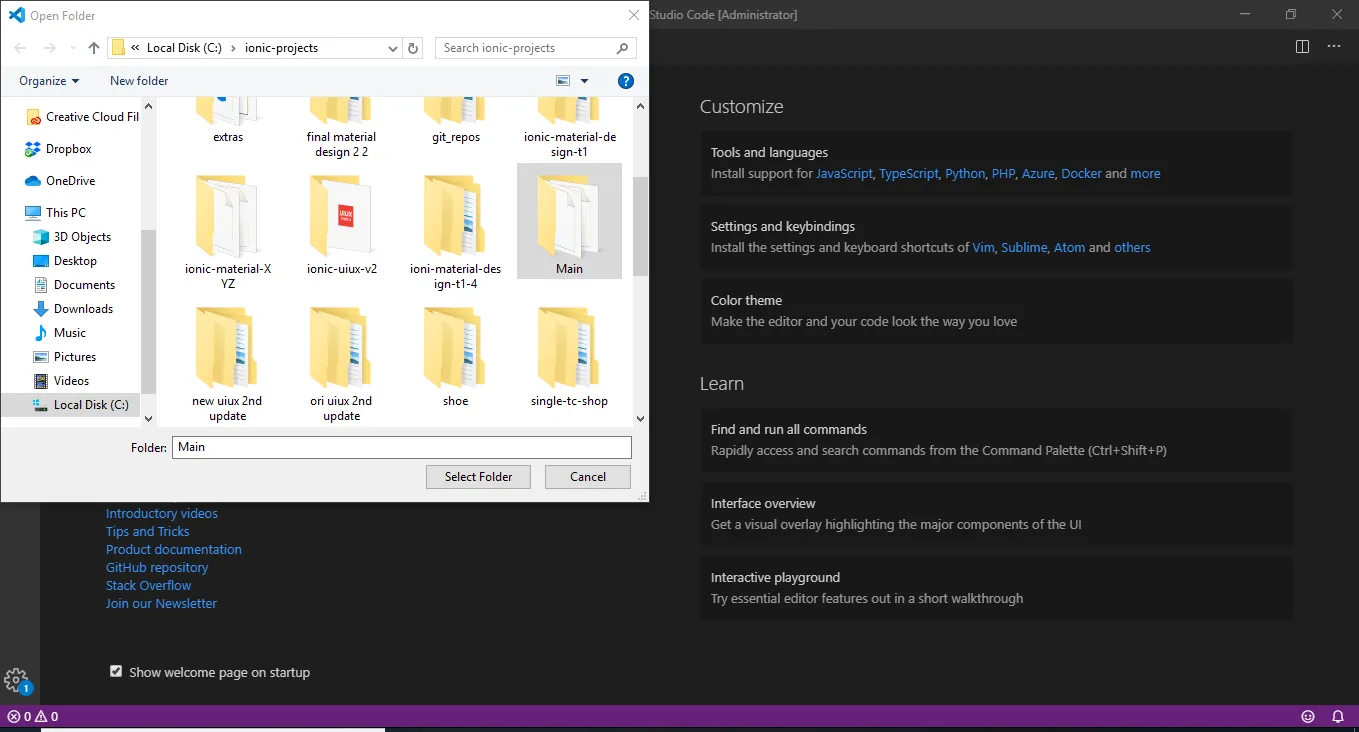
Select the Main folder of the project.
Check that the terminal is in the project folder.

The project looks like this:

Change the colours#
The colour scheme is set in the services (theme.service and custom-theme.service), which save the chosen theme in local storage.
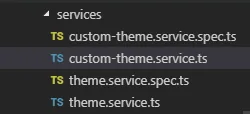
To use your own colours, follow the same pattern: switch the default values for the colours you want, as in the commented examples.

Find a screen or component#
Every page is in its own folder under src/app, with its page.html, page.scss, page.ts and page.module.ts. Copy the folder of the component or screen you want.

Use a template#
Each template has its own folder. Pick the template's folder:

Its images and other assets are here:

Routes#
To get a template's or page's routes, open app-routing.module.ts and copy the paths you need. Comments in the file mark which paths belong to which template.
