
Installation
This chapter covers Plugin Installation, Lesath Source Code Setup, Facebook Login and One Signal Notification.
Plugin Installation#
We have added JSON API and Lesath eCommerce plugins. These plugins can be installed in two ways.
You will find the JSON API and Lesath eCommerce plugins in a zipped folder in the pack.
1stMethod
- Upload the folder “JSON-API” to your WordPress Plugin folder (/wp-content/plugins)
- Now activate the plugin through the “plugins” menu in WordPress or by using the link provided by the plugin installer.
- Activate the controller through the JSON API menu found in the WordPress Admin Center (Settings->JSON API)
2ndMethod
Go straight to the admin panel>Plugin>Add New.
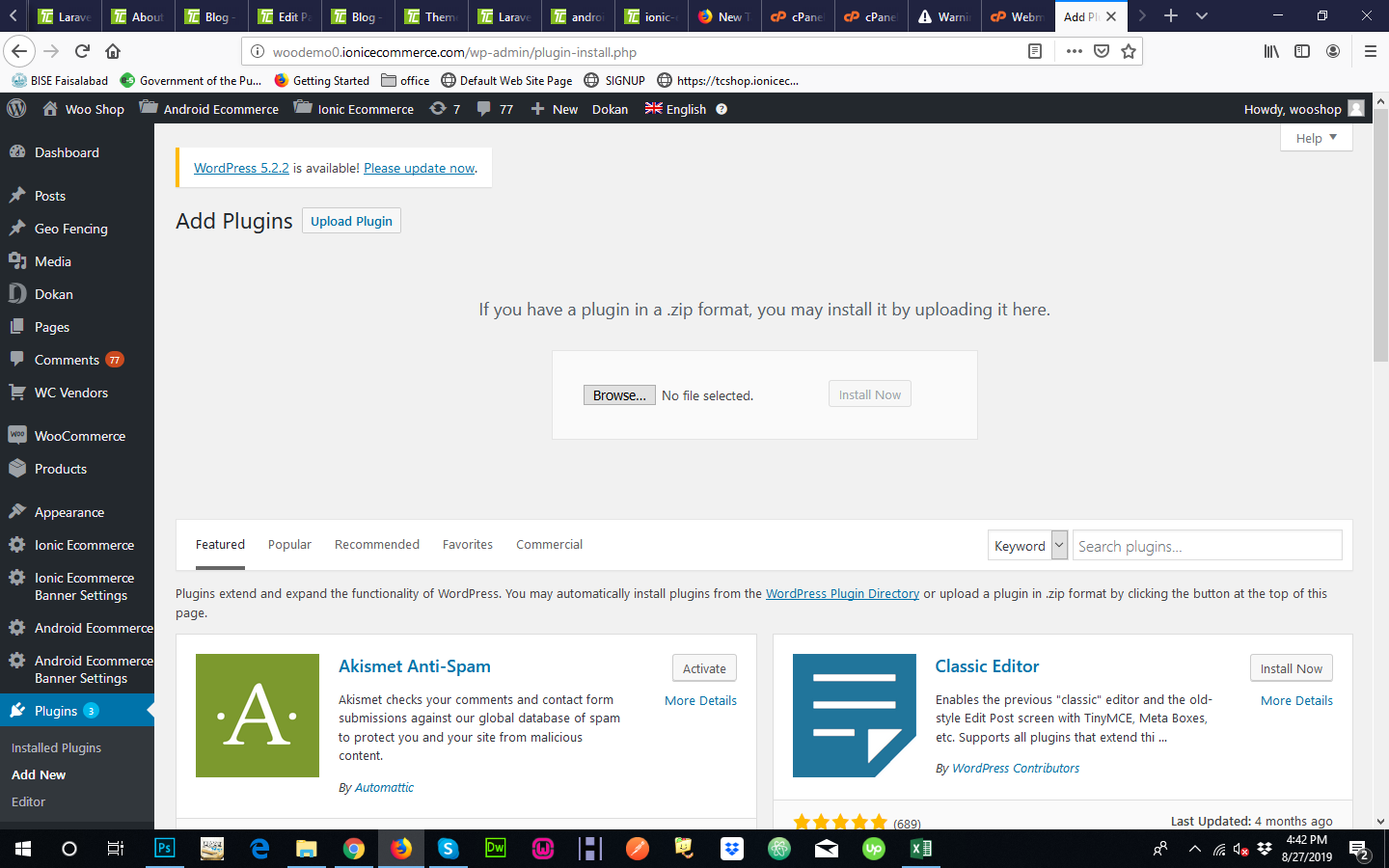
The above-given page will show up. From here, click on the “upload plugin” option, make sure that the plugin that you have is in .zip format. Click on the “Browse” option, upload the plugin folder and once the folder is chosen, click on the “Install Now” option”.
Once the plugin is installed, you can activate or deactivate the plugin through settings according to your usage.
After WordPress plugins installation and setup, please follow the below-mentioned instructions to set up your mobile application.
After Intallation of plugin need to activate the controllers from Settings >> Json APi
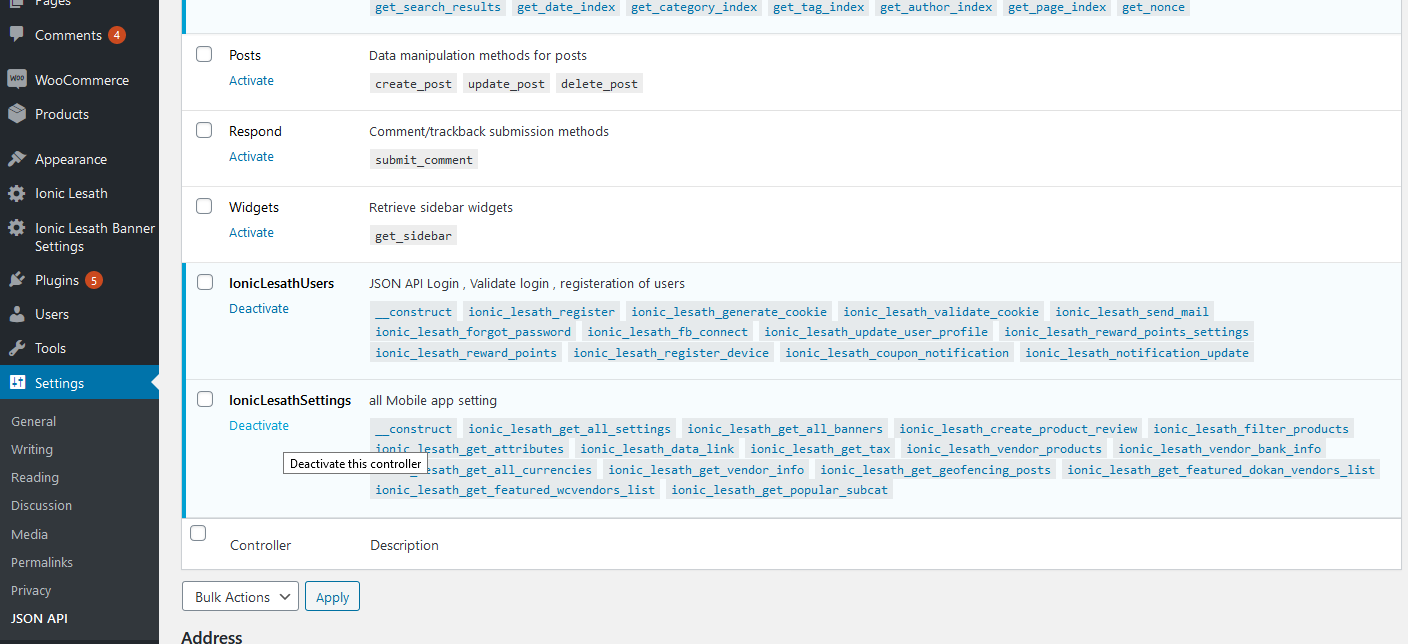
Ionic Woocommerce app works with woocommerce rest api, please follow the link below to enable woocommerce rest api on your server.
https://docs.woocommerce.com/document/woocommerce-rest-api/
After enable rest api, please make sure your site woocommerce rest api working correctly. You can follow that simple tutorial link to check whether rest api works correctly on your sever or not.
https://github.com/woocommerce/woocommerce/wiki/Getting-started-with-the-REST-API
Now you have all set at your wordpress site end. Please proceed with ionic source code setup.
Lesath Source Code Setup#
Lesath Source Code Setup
Now we have set up the ionic environment. We need to connect our app with woocommerce website. Open the folder name (App Source Code) inside the downloaded packages.
Inside the folder, you will find all the ionic application code.
Now open project folder/src/providers/config.service.ts file and change the following.
- https://your-site.com (it will be the URL of your domain)
- consumer key
- consumer secret
It will load woocommerce products data into your application

Test Application
Now you can test the application in your ionic development environment.
Facebook Login#

This allows you to log in through your Facebook credentials. Here is the official link with the detailed demonstration of Facebook integration https://ionicframework.com/docs/native/facebook/.
One Signal Notification#
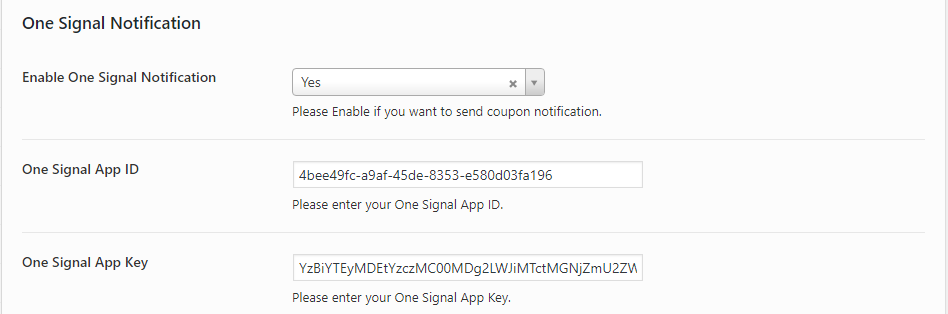
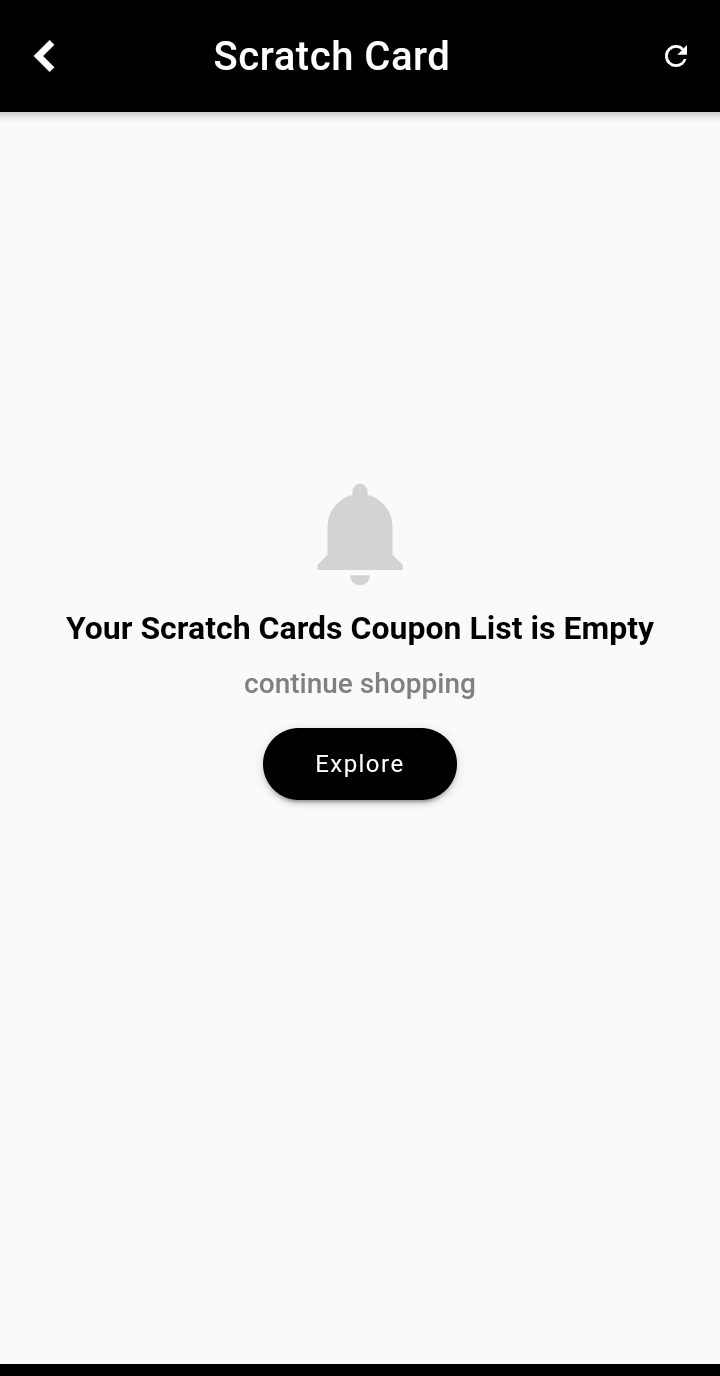
To avail of this feature, you need to create OneSignal account and obtain both needed keys that are App ID and App key. Place them here and make this feature functional. You can offer various discount coupons to your distinguished customers that would appear in their app like this
Here is the official link that would guide you throughout the process of OneSignal account creation https://ionicframework.com/docs/native/onesignal