
Introduction
Kundol Tailwind is a multipurpose shopping template built with Tailwind CSS 3. One download gives you a complete storefront, an admin dashboard with a point of sale, a vendor dashboard and a set of email templates, all as plain HTML and JavaScript you can host anywhere.
Press / anywhere to search these docs, or use View all on one page in the sidebar to print or save the whole guide as a PDF.
What's in the package#
The download has four folders, each a separate project:
| Folder | What it is |
|---|---|
kundol-tailwind-website/ | The storefront: 19 home pages, shop, product, cart, checkout, blog, account and vendor storefront pages, and element pages |
kundol-tailwind-admin-dashboard/ | The admin dashboard: products, orders, customers, purchasing, stock, accounts, reports, settings and a point of sale |
kundol-tailwind-vendor-dashboard/ | The seller's own dashboard: products, media, orders, reviews, campaigns, payouts and support |
kundol-email-templates/ | Order, sign-up, password and promotional emails |
In each of the three Tailwind projects, the pages and assets are in src/.
Features#
- Light and dark layouts
- Right-to-left layout
- 20 colour themes for the storefront, 6 for the admin dashboard
- Boxed layout option
- Fully responsive storefront and dashboards
- Multivendor storefront pages and vendor dashboard
- Lightweight: Tailwind utility classes and plain JavaScript, built with modular, easy-to-edit markup
- SEO-friendly markup
What you need#
- A code editor, for example VS Code
- A modern browser such as Chrome or Firefox for testing
- Node.js (LTS) if you want to change Tailwind classes or colours (see Installation)
- An FTP client such as FileZilla, or your host's file manager, to upload the site
Basic HTML and CSS knowledge is enough to customise the template; Tailwind's documentation explains every utility class.
Keep a copy of the original files before you edit. A broken tag can break the whole layout, and support doesn't cover faulty customisation.
Installation
The pages work as they are: the compiled CSS is already in each project's src/css/ folder. You only need Node.js if you change Tailwind classes in the HTML, the colours, or the Tailwind config.
Open the template#
- Unzip the download.
- Open the project you want in your code editor, for example
kundol-tailwind-website/. - Open
src/index.htmlin your browser. For live reload while you edit, use a local server such as the VS Code Live Server extension: right-clickindex.htmland choose Open with Live Server.
The admin dashboard starts at kundol-tailwind-admin-dashboard/src/index.html and the vendor dashboard at kundol-tailwind-vendor-dashboard/src/index.html.
To publish, upload the contents of the project's src/ folder to your web host.
Set up Tailwind#
Tailwind only puts the classes your pages use into the CSS file, so after you add or change classes you need to rebuild it.
Download and install Node.js (LTS).
Open a terminal in the project folder and install its packages:
cd kundol-tailwind-website
npm install
Do the same in
kundol-tailwind-admin-dashboardandkundol-tailwind-vendor-dashboardif you edit those.
Watch for changes#
Run the watcher in the project folder. It rebuilds the CSS every time you save an HTML, JavaScript or CSS file in src/, and keeps running until you press Ctrl+C.
Storefront and admin dashboard (in kundol-tailwind-website/ or kundol-tailwind-admin-dashboard/):
npx tailwindcss -i ./src/input.css -o ./src/css/output.css --watch
Vendor dashboard (in kundol-tailwind-vendor-dashboard/), whose pages load vendor.css:
npx tailwindcss -i ./src/input.css -o ./src/css/vendor.css --watch
For a smaller file to upload, run the same command once without --watch and with --minify.
input.css is the source: it holds the Tailwind directives, the colour theme variables and any custom CSS. Never edit output.css or vendor.css by hand; the next build overwrites them.
Files and folders
Each of the three Tailwind projects has the same shape:
kundol-tailwind-website/
├── package.json         Tailwind CSS and its plugins
├── tailwind.config.js   colours, fonts, dark mode and other theme settings
└── src/                 everything you upload
    ├── *.html           the pages
    ├── input.css        Tailwind source: directives, colour themes, custom CSS
    ├── css/             compiled CSS (output.css, or vendor.css for the vendor dashboard)
    ├── js/              scripts
    ├── images/
    └── video/           (storefront only)
Storefront#
kundol-tailwind-website/src/ has:
- Home pages:
index.htmlandindex-2.htmltoindex-19.html - Shop pages:
shop-*.html(2, 3, 4 and 6 columns, list, full width, right sidebar, banner sidebar, infinite scroll) - Product pages:
product-*.html(several gallery, accordion, tab and sidebar layouts) - Cart, checkout, wishlist, compare and thank-you pages
- Account pages:
login-page1.html,login-page2.html,signup.html,dashboard.html,change-password.html - Blog, about, contact, privacy, refund, terms and 404 pages
- Element pages: accordions, banners, blogs, products, tabs, titles and typography
- Vendor storefront pages (see Admin and vendors)
Scripts:
js/main.js: the template's scripts (menus, carousels, the dark, RTL, boxed and colour switchers), with jQuery and Slick bundled injs/tw-elements/: TW Elements components (modals, dropdowns, tabs and more)css/slick.css: carousel styles
tailwind.config.js loads the TW Elements plugin, which is why the build needs npm install first.
Admin dashboard#
kundol-tailwind-admin-dashboard/src/ has the dashboard pages, css/output.css, and one script per page that needs one: js/main.js for the shared parts (header, sidebar, drag and drop, switchers), js/index.js for the dashboard charts, and files such as js/pos.js, js/add-product.js, js/sale-report.js and js/website-setting.js for the matching pages.
Vendor dashboard#
kundol-tailwind-vendor-dashboard/src/ has the vendor pages, css/vendor.css, and js/main.js, js/index.js (dashboard charts), js/daterange.js and js/Slider-ClassicEditor.js (product description editor).
Third-party libraries#
Both dashboards load jQuery, ApexCharts, Easy Pie Chart and Font Awesome from CDNs, so they need an internet connection. To host them yourself, download the files and change the <script> tags at the end of each page.
Email templates#
kundol-email-templates/ has ready HTML emails (order-confirm.html, signup.html, forgot-password.html, sale and new-arrival campaigns and more) with a shared email-temp.css. Open index.html there to preview them.
Customisation
Kundol Tailwind is styled with Tailwind utility classes in the HTML, plus a few values in tailwind.config.js and src/input.css. After changing any of them, rebuild the CSS (see Installation). Tailwind's customisation docs cover every option.
Storefront colours#
The storefront has two main colours:
Primary
#131313(text and dark backgrounds), set intailwind.config.js:colors: { primary: "#131313", secondary: "var(--color-secondary)", // … }Secondary
#fe4536(buttons, prices, highlights), set as a CSS variable at the top ofsrc/input.css::root { --color-secondary: #fe4536; --color-secondaryDark: #9e4b47; /* … */ }
Change the variable in input.css to recolour the storefront without touching the HTML. To add a colour of your own, add it to colors in tailwind.config.js and use it as a class, for example bg-brand or text-brand:
module.exports = {
  theme: {
    extend: {
      colors: {
        brand: '#243c5a',
      },
    },
  },
};
Colour themes#
input.css also defines 20 ready-made colour themes, each a class that overrides the secondary colours:
theme-yellow, theme-blue, theme-green, theme-navyblue, theme-red, theme-pink, theme-sugar, theme-nailblue, theme-ashgray, theme-whiterock, theme-apple, theme-lavender, theme-brown, theme-greennish, theme-diamondblue, theme-citrus, theme-gray, theme-darkgray, theme-teal, theme-wood.
On the storefront the theme class goes on the <main id="theme"> element:
<main id="theme" class="theme-blue …">
The colour switcher on the demo only changes the class while you browse. To fix a theme for your site, add the class in your pages' HTML.
Admin and vendor colours#
The dashboards use --color-primary and --color-secondary, set at the top of their own src/input.css (default #ae69f5 and #f49d2a). The admin dashboard also has five colour themes in its input.css: theme-blue, theme-red, theme-green, theme-yellow and theme-navy-blue. They go on the <div id="theme"> wrapper at the top of each page.
Fonts#
The template uses Poppins, loaded from Google Fonts by a <link> in each page's <head> and set in tailwind.config.js:
fontFamily: {
  Poppins: "'Poppins', sans-serif",
},
The font-Poppins class on <body> applies it. To change the font, swap the Google Fonts link and this value.
The shipped config spells the fallback as sans-seri. It only matters if Poppins fails to load; correct it to sans-serif when you edit the line.
Icons#
The template uses Font Awesome icons:
<i class="fa-solid fa-cart-shopping"></i>
The storefront loads Font Awesome 6 from cdnjs. The dashboards load it through a Font Awesome Kit script (kit.fontawesome.com/…); replace that with your own kit or the same cdnjs stylesheet the storefront uses. The dashboards also use inline SVG icons, which stay sharp at any size.
Layout options
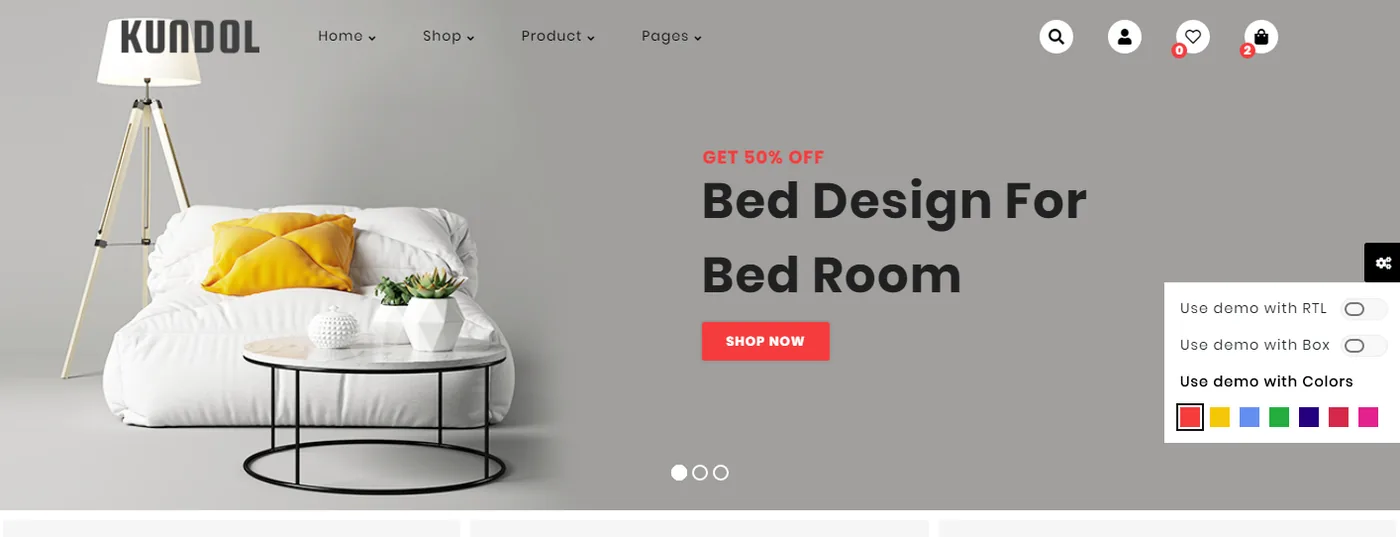
The settings panel on the right of the demo pages toggles these options so you can preview them, but it doesn't save anything: to keep an option, put it in your HTML.
Right-to-left (RTL)#
For Arabic, Hebrew, Urdu and other right-to-left languages, set dir="rtl" on the <body> tag:
<body dir="rtl" class="font-Poppins …">
Set it back to dir="ltr" for left-to-right. To style something differently in each direction, use Tailwind's rtl: and ltr: variants, for example ltr:ml-4 rtl:mr-4.
Dark mode#
Dark mode uses Tailwind's class strategy (darkMode: 'class' in tailwind.config.js), so it turns on when an element above the page content has the dark class:
| Where | Add dark to |
|---|---|
| Storefront | <body id="dark"> |
| Admin and vendor dashboards | <html id="darkmood"> |
Style anything for dark mode with the dark: variant, for example bg-white dark:bg-dark-page. See Tailwind's dark mode docs.
Boxed layout#
The storefront is full width by default. The Box switch in the settings panel centres it in a box on large screens (1536px and wider) by toggling these classes on <body id="dark">:
2xl:w-[80.7%] 2xl:mx-auto 2xl:flex 2xl:self-center 2xl:items-center 2xl:shadow-lg
Add the same classes to the <body> tag to make the boxed layout permanent.
Popups#
The storefront has two modals:
- Newsletter: a subscribe popup that opens on the home page.
- Product quick view: opens from a product card, with images, price, options and an add-to-cart button.

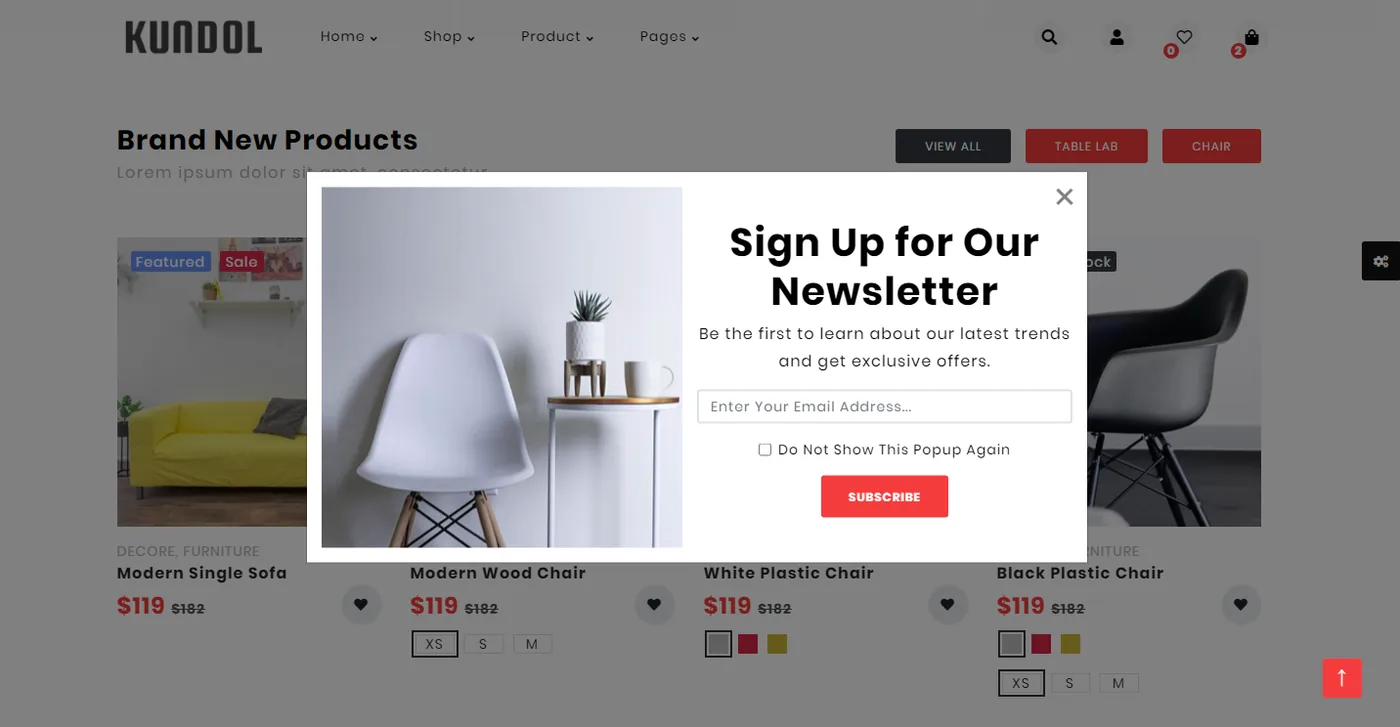
The newsletter popup is the <div id="items2"> block after </main> on the home page; its close button calls cancel2() in js/main.js. Delete the block to stop the popup.
Admin and vendors
Kundol Tailwind includes the screens for running the store as well as the storefront. They are static HTML: connect them to your own back end (or platform) to make them work.
Admin dashboard#
Open kundol-tailwind-admin-dashboard/src/index.html for the dashboard; login.html is the sign-in page. The admin covers:
| Area | Pages |
|---|---|
| Catalogue | product.html, add-product.html, categories, brands, units, variants, reviews, barcodes |
| Sales | sell-list.html, order-detail.html, add-sale.html, sale returns, quotations, coupons |
| Point of sale | pos.html |
| Purchasing and stock | purchases and purchase returns, add stock, stock transfer, warehouses, suppliers |
| People | customers, billers, admins and roles (admin-roles.html) |
| Accounts and reports | accounts, balance sheet, trial sheet, cash flow, expenses, and sale, purchase, stock, profit-and-loss, customer and supplier reports |
| Content and settings | media library, menu builder, website, business and app settings, languages, currencies, tax, shipping and payment methods |
| UI kit | buttons, form inputs, text editor, date-time picker, tabs, alerts, carousels, switches and modals |
modals.html shows every modal style used in the admin, ready to copy into your pages.
Vendor storefront#
For a multivendor store, the storefront project (kundol-tailwind-website/src/) has pages for each seller:
- Vendor home pages:
vendor-home1.htmltovendor-home5.html - Vendor list and profile:
vendor-listing.html,vendor-profile.html - Vendor shop pages:
vendorshop-*.html(2, 3, 4 and 6 columns, list, full width, sidebar banner and infinite scroll versions) - Vendor product pages:
vendorproduct-page1.htmltovendorproduct-page11.html - Vendor sign-in:
vendorlogin.html
Vendor dashboard#
Each seller manages their shop from kundol-tailwind-vendor-dashboard/src/index.html. It has:
- Products: list, add product, reviews
- Media: library, upload details and media settings
- Sales: sell list and order detail
- Promotions: campaigns and vouchers
- Financial: earnings and payouts
- Seller support: tickets and replies
- Store settings: general settings, banners and storefront customisation
Changelog
Version 1.0 (December 2024)#
First release:
- Storefront
- Vendor storefront pages
- Vendor dashboard
- Admin dashboard
- Point of sale
Support
Stuck on a step, or found something that doesn't work as this guide says? We're happy to help.
Get help#
- Help Center. Start at the Themes Coder Help Center for the guides of every product and how to reach us.
- ThemeForest item support. Buyers can also ask from the item page on ThemeForest.
Before you write#
Please include these, so we can answer in one go:
- Your purchase code, or the email you bought with.
- Which part you're setting up: the admin panel or website, the customer app, or the delivery or vendor app.
- The step in this guide where it stopped working, what you expected and what happened instead.
- Screenshots of any error, and the console or build output if a build failed.
What item support covers#
Support covers questions about how the item works, fixing bugs in it, and help with the third-party assets it includes. Installing it on your server for you, custom changes and new features aren't part of item support, but you're welcome to ask about them.